Users
The Users page lists the members of your tenant: who can sign in and which role they hold.
Who can access this: admins.
What you see
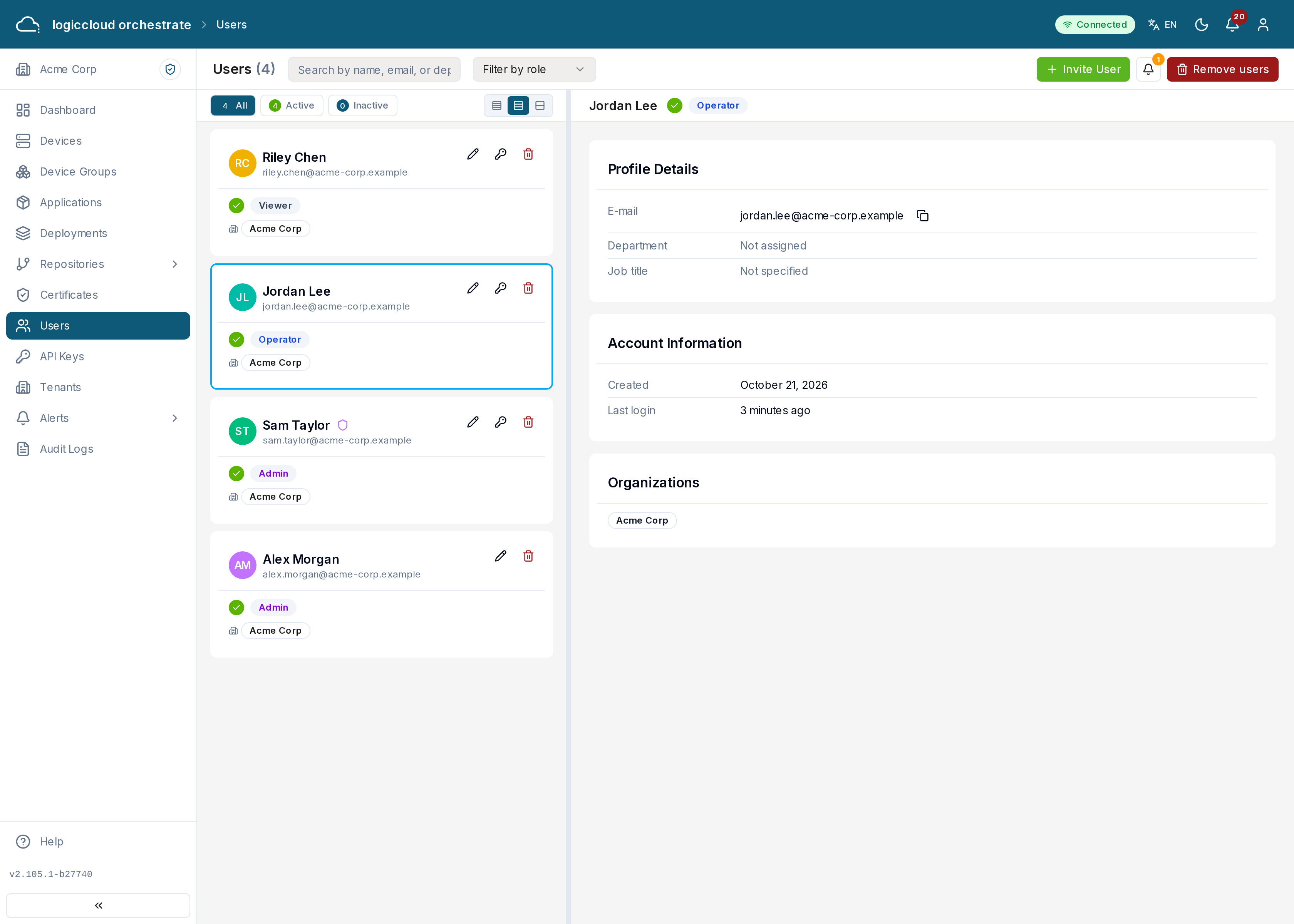
Section titled “What you see”The list of members is on the left; the user you select opens on the right. Each card shows the name, e-mail address, role (admin, operator or viewer) and status.
- Search by name, email, or department… finds a member.
- The role filter and the status buttons (Active, Inactive, Pending Invitation, Suspended) narrow the list.
- The bell button next to Invite User shows the Pending Invitations that are not accepted yet, with their number.
A card with E-mail not verified belongs to a user who has not confirmed their e-mail address yet. That user cannot sign in until they do.
Inviting a user
Section titled “Inviting a user”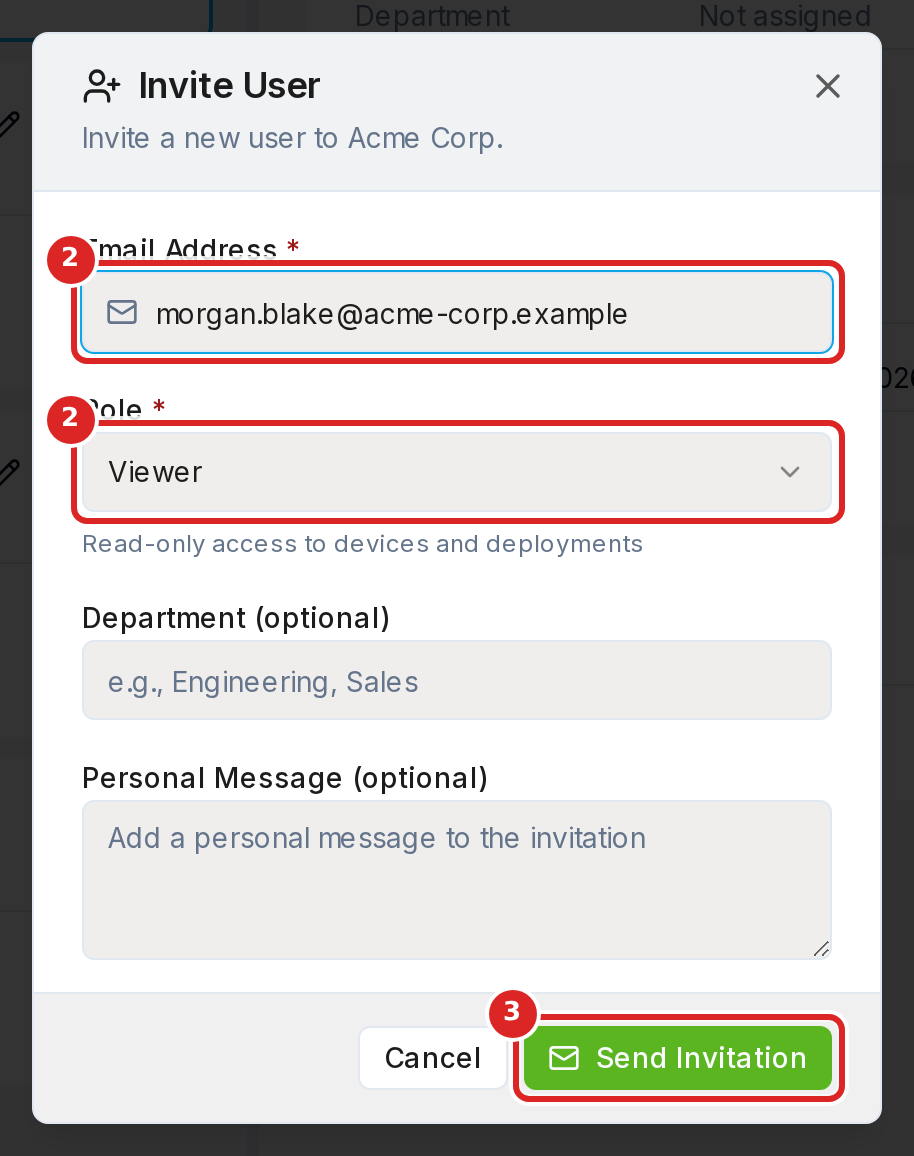
- Click Invite User.
- Enter the Email Address and choose the Role. Optionally add a Department and a Personal Message.
- Click Send Invitation.
The person receives an e-mail with a link to set a password and join. The invitation is valid for 7 days. Until it is accepted, it is listed under Pending Invitations (the bell button next to Invite User), where you can Resend invitation or Revoke invitation.
When your installation uses Microsoft Entra ID for sign-in, Invite User is not shown: people join through Entra (see Corporate sign-in).
Managing a member
Section titled “Managing a member”The actions are icons on the selected card:
- Edit — change the role, department and job title. You cannot change your own role.
- Reset password — see Resetting a password.
- Resend verification e-mail — sends the e-mail confirmation again to a user with E-mail not verified.
- Remove from Tenant — the person loses access to this tenant and keeps their account and their other tenants. A user whose only tenant is this one cannot be removed; a superadmin can delete the account instead.
Remove users in the page header removes several members at once: click members to move them to the list on the right, then confirm. If some of them fail, the dialog keeps those selected so you can retry.
Resetting a password
Section titled “Resetting a password”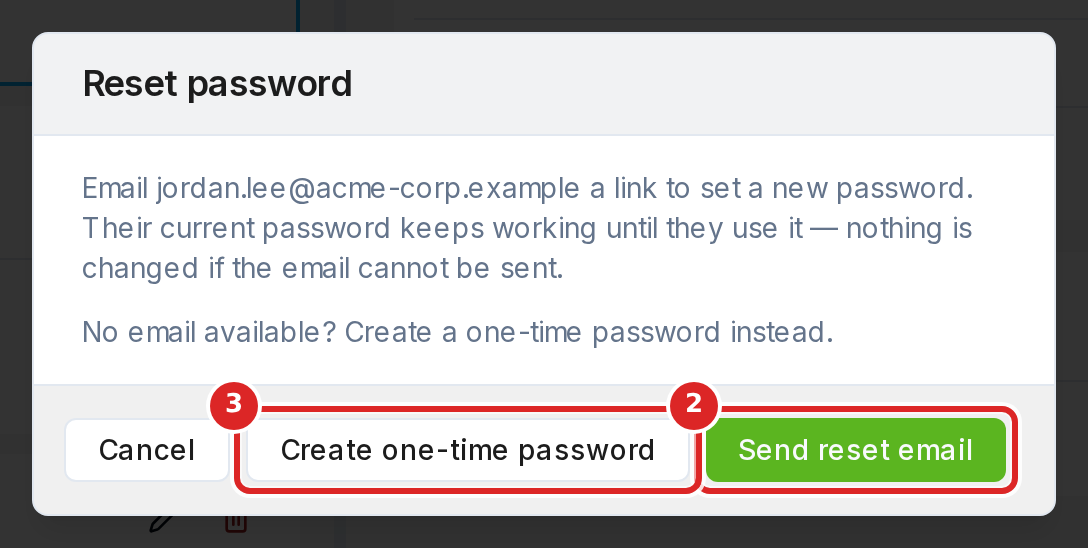
- Click Reset password on the member’s card.
- Click Send reset email. The person receives a link to set a new password. Their current password keeps working until they use the link.
- If the person cannot receive e-mail, click Create one-time password instead. Copy the password and give it to the person in a safe way: it is shown only once. They must choose a new password when they sign in.
Reset password is not available for your own account, for inactive users or for users who sign in through Entra ID.
When Microsoft Entra ID manages the users
Section titled “When Microsoft Entra ID manages the users”When your installation uses Entra ID for sign-in, Entra decides who has which role. Then:
- Invite User and Reset password are not shown.
- The role in Edit cannot be changed. Superuser access shows Superuser access is governed by Entra mappings for this realm and cannot be changed manually.
- The user details show Sign-in: Microsoft Entra ID for people who sign in through Entra.
Roles then come from Federation Mappings.
Superadmins
Section titled “Superadmins”A superadmin can also do the following:
- Show all tenants — lists the users of every tenant. In this view the delete action is Delete User: it deletes the account everywhere and cannot be undone.
- Clear Keycloak link — for a user whose sign-in account was re-created and who can no longer sign in. Their memberships, roles and history are kept. Their next sign-in links the account again, if their e-mail address is verified.
- Activate / Deactivate, also for several users at once with Activate users and Deactivate users — a deactivated user cannot sign in.
- Edit also offers Superuser access (bypass all restrictions).
Status values
Section titled “Status values”| Status | Meaning |
|---|---|
| Active | Can sign in with the access of their role. |
| Inactive | Deactivated; cannot sign in. |
| Pending Invitation | Invited; the invitation is not accepted. |
| Suspended | Access is withheld. |