Applications
The Applications module is the catalog of workloads you can deploy to your devices.
Who can access this: all roles can browse; deploying requires operator or admin rights (see Deployments).
Where applications come from
Section titled “Where applications come from”You do not create applications by hand. The catalog is populated by registry sync: the platform syncs your Git and OCI registries and discovers application manifests and images. Each discovered version is indexed and immutable.
An application’s availability reflects its sources:
- Available — at least one registry still provides it.
- Source unavailable — every source registry has been removed.
Availability is set by the platform from the registries. It is separate from the lifecycle status below.
Version lifecycle status
Section titled “Version lifecycle status”Each version also has a lifecycle status. An operator or admin sets it; a registry sync never changes it.
| Status | New deployments | Existing deployments |
|---|---|---|
| Active | Allowed | Unaffected |
| Deprecated | Allowed, with a warning | Unaffected |
| Retired | Refused | Unaffected |
New versions start as Active. To change the status, open the application, select the version and pick the new status in Lifecycle. The change is recorded in the audit log.
The API refuses a new deployment of a Retired version with 409 Conflict,
and a version rollback to a Retired version is refused in the same way. Over the
API, set the status with
PATCH /api/v1/applications/{id}/versions/{version}/lifecycle-status and the
body { "lifecycleStatus": "DEPRECATED" } (permission applications:write).
What you see
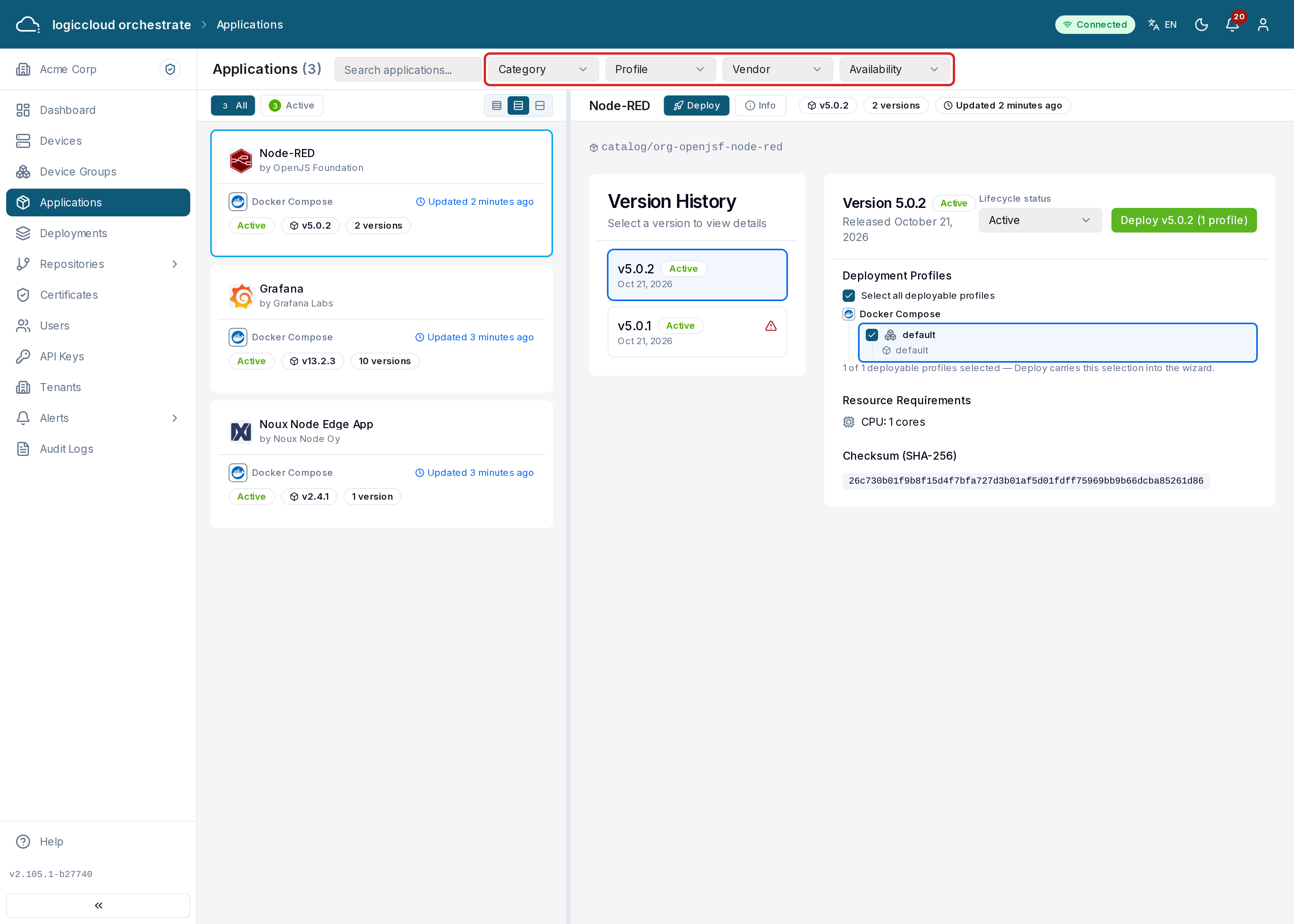
Section titled “What you see”The list of applications is on the left; the application you select opens on the right. Each card shows the application’s name, vendor, category, the deployment profiles it supports (Docker Compose, Helm Chart, Kubernetes, Podman) and badges for its availability and lifecycle status.
- Search applications… finds an application by name.
- The filters Category, Profile, Vendor and Availability narrow the list. Clear filters resets them.
- The lifecycle buttons (Active, and Deprecated or Retired when there are any) show only applications with at least one version in that status.
Application detail
Section titled “Application detail”Opening an application shows its metadata and description, a version history, and, for the selected version:
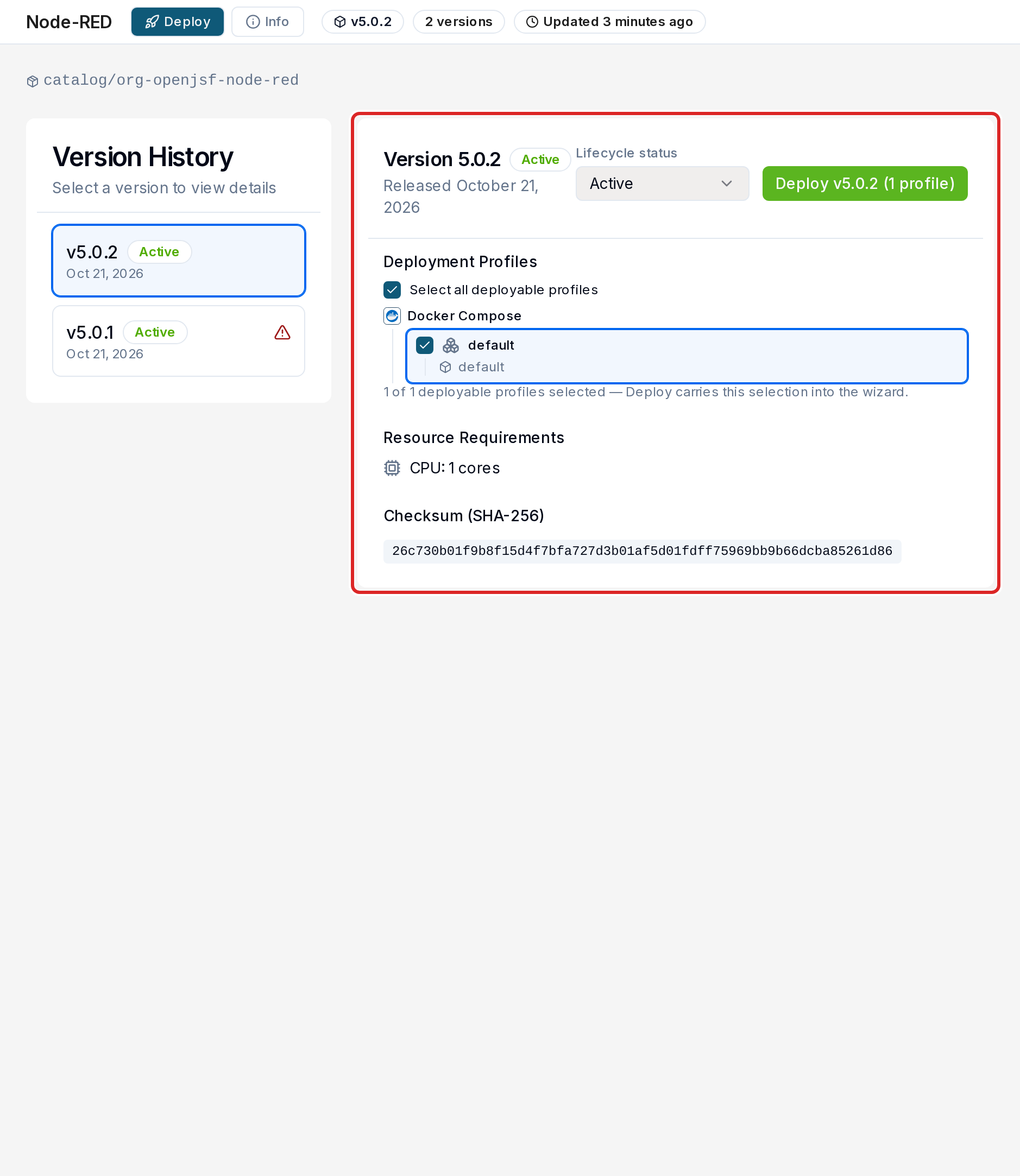
- the lifecycle status (with a warning for Deprecated and Retired),
- the deployment profile,
- resource requirements (CPU, memory),
- compatible devices,
- the SHA-256 checksum and minimum Margo version,
- the source registries that provide it,
- and its license and release notes, when the application description
declares them (
licenseFile,releaseNotes). Text and Markdown files are shown; a PDF is named but not displayed.
Two applications with the same name are separate applications when their Margo application ids differ (for example the same product published by two repositories with different ids).
Versions
Section titled “Versions”The version history lists the highest version first (by version number, not by upload date). A version that no registry provides any more is marked Source Unavailable.
Deleting a version that no registry provides
Section titled “Deleting a version that no registry provides”Admins can remove a Source Unavailable version from the catalog:
- Select the version and click Delete version (the trash icon).
- Confirm with Delete version.
The server refuses the delete while deployments still use the version; remove those deployments first. If it was the last version, the application is removed too. If a registry later provides the version again, the next sync restores it.
Deploying an application
Section titled “Deploying an application”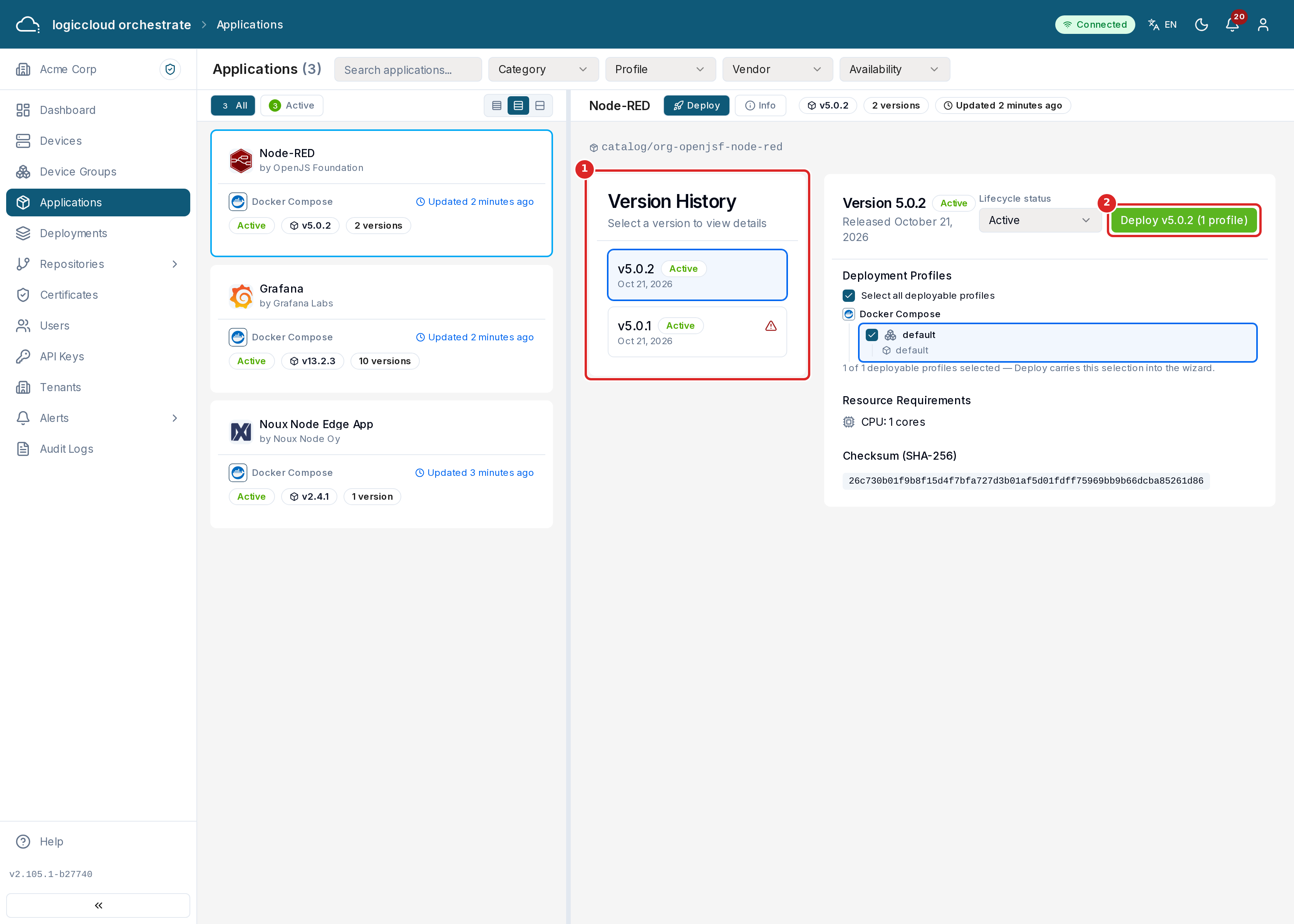
Select the version and click Deploy v1.2.3 (the button shows the version you selected). The deploy wizard opens with these steps:
- Select Devices — pick device groups, single devices, or both. See Device Groups.
- Configure Parameters — set the parameters the application exposes. A setting marked Locked cannot change after installation.
- Rollout Strategy — choose Immediate, Canary or Rolling, and set auto-promote and auto-rollback.
- Review & Deploy — check everything and click Deploy Application.
When you start the wizard from the Deployments page instead, it begins with Select Application. Retired versions are shown there but cannot be selected.
Deploy is not shown for a version that is Source Unavailable or Retired. It is disabled for a version with the retired parameter shape (see below).
Several deployment profiles
Section titled “Several deployment profiles”Some versions offer more than one deployment profile, for example Docker Compose and Helm Chart. Tick every profile you want on the version before you click Deploy: each ticked profile becomes its own deployment. You must tick at least one; logiccloud orchestrate does not choose for you. Deployments created together form a deployment group (see Re-deploying).
Target namespace
Section titled “Target namespace”Target namespace (in Configure Parameters) sets the Kubernetes
namespace the workload is installed into. Leave it empty to use the default. A
namespace has at most 63 characters: lowercase letters,
digits and -, starting and ending with a letter or digit. It can be set only
when you create a deployment, not when you re-deploy.
When the server rejects parameter values
Section titled “When the server rejects parameter values”logiccloud orchestrate checks every parameter value against the rules the application declares, also for values sent through the API. If a value breaks a rule, the wizard shows The server rejected N parameter value(s) and marks each field with the reason, for example A value is required., Use at most 32 characters (now 40). or Choose only from the allowed options. Correct the fields and click Deploy Application again.
Versions with the retired parameter shape
Section titled “Versions with the retired parameter shape”A version described in an older format shows the banner Retired Parameter Schema. It cannot be deployed until its publisher releases it again in the current Margo format. Existing deployments of it keep running.
Submitting creates the deployment and takes you to its detail page. See Deployments for the full rollout reference.