Devices
The Devices page lists every edge device of your tenant. Use it to find a device, check its health and workloads, read its logs, and edit or delete it.
Who can access this: all roles. Viewers can only look. Operators and admins can also edit and delete devices.
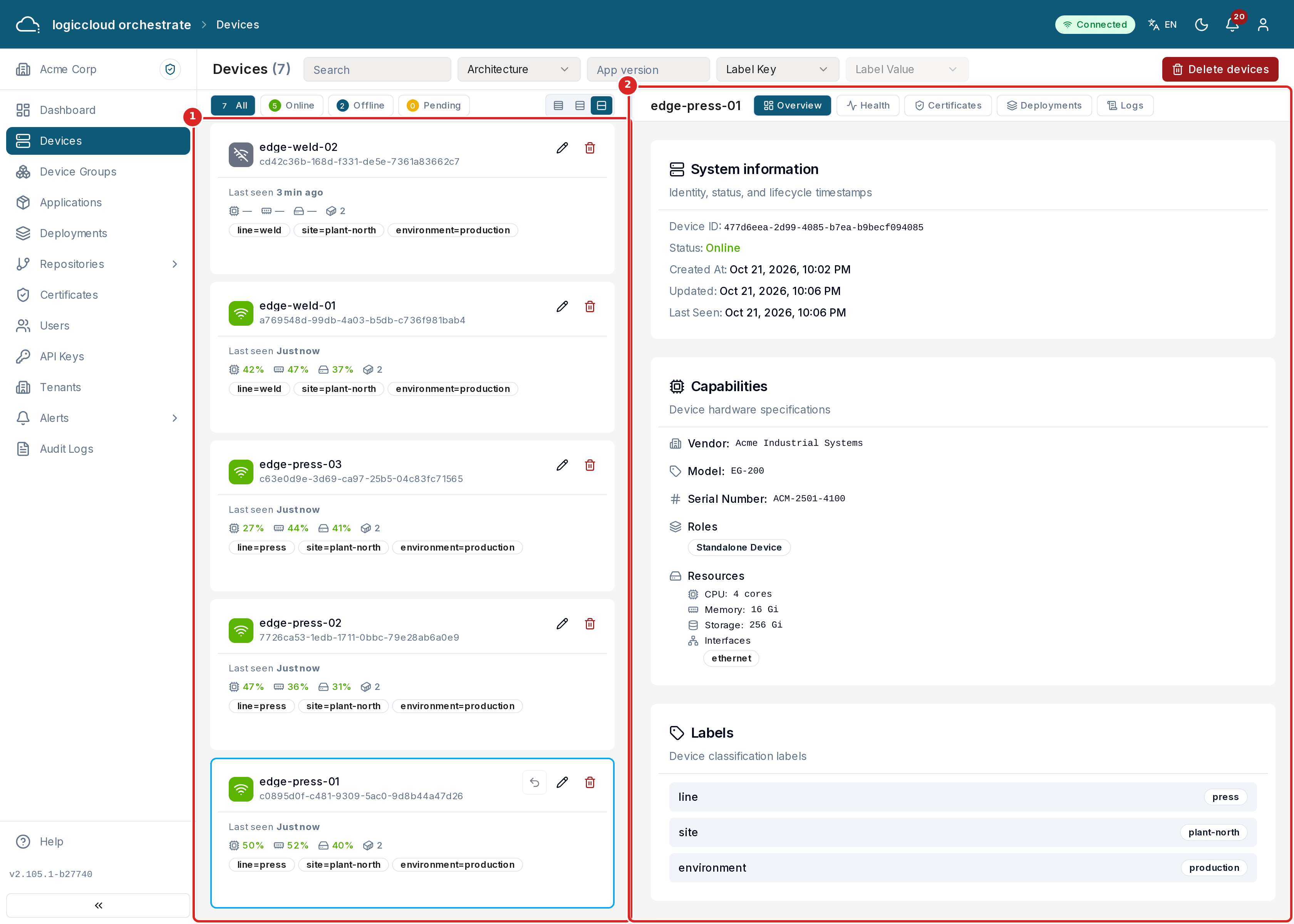
The device list
Section titled “The device list”The list is on the left (1). The device you select opens on the right (2). Drag the border between the two to change their width. When you come back to the page, the device you selected last opens again.
Each device is a card:
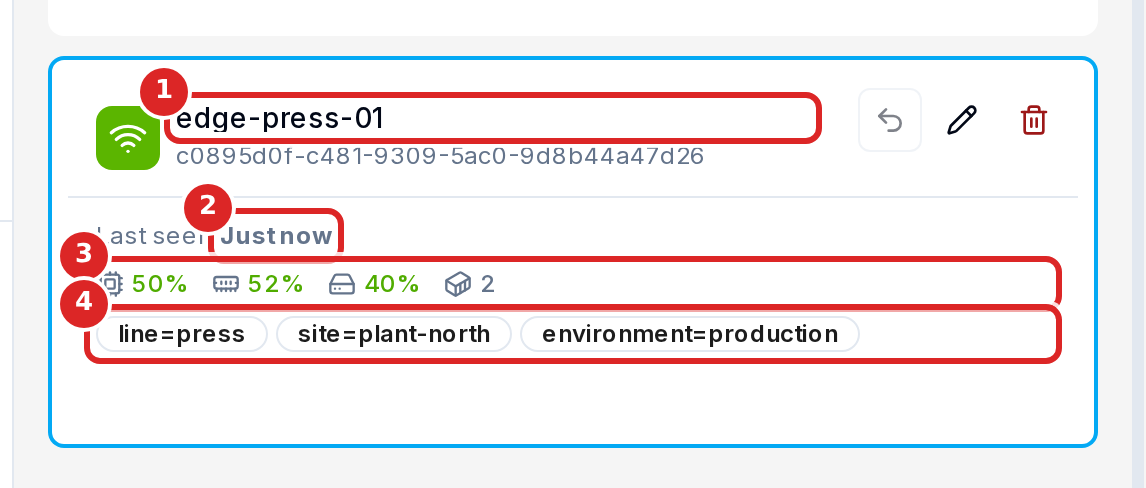
- The status icon and the device name, with its client ID below.
- Last seen — when the device last contacted logiccloud orchestrate (for example “5 min ago”).
- The health row: CPU, memory and disk usage in percent, and the number of workloads that run on the device. A value turns yellow from 75 % and red from 90 %. A dash (—) means the device has not reported this value yet.
- The device labels (the first four, then “+N more”).
Use Card size in the list toolbar to show more devices at once: Small shows the name and the status only, Medium adds the last-seen time and the health row, Large (the default) also shows the labels.
The list loads more devices as you scroll. It refreshes the visible cards every 10 seconds.
Device status
Section titled “Device status”| Status | Meaning |
|---|---|
| Online | The device contacts logiccloud orchestrate regularly. |
| Offline | An online device has not contacted logiccloud orchestrate for 30 seconds. |
| Pending | The device has registered but has not reported its capabilities yet. |
| Error | The device reported an error. |
| Unknown | logiccloud orchestrate has no current status for the device. |
A device that goes offline is shown as Offline within about a minute. It becomes Online again with its next contact.
Finding devices
Section titled “Finding devices”
The search box and the filters are at the top of the page:
- Search — type part of a device name, client ID, the device ID the device reports, or its serial number. Upper and lower case do not matter.
- Architecture — show only
amd64,arm64orarmdevices. - App version — type an application version (for example
1.2.3) to show only devices that run that version of any application. - Label Key and Label Value — pick a label key to show the devices that have it, then a value to narrow the list further.
- The status buttons in the list toolbar (All, Online, Offline, Pending, Unknown, Error) show how many devices have each status. Click one to show only those devices.
All filters work together: a device must match every filter you set. For
example, the label line = press with the status Offline shows the offline
devices of the press line. The header shows how many devices match, for
example “Devices (3/48)”. The filters are part of the page address, so you can
bookmark a filtered list or send it to a colleague.
Click the X next to the filters to clear them. The status selection stays.
The same filters are available in the API: GET /api/v1/devices accepts
search, status, architecture, appVersion, labelKey, labelValue and
unlabeled. See the API Reference.
Device details
Section titled “Device details”The selected device opens on the right, with these tabs:
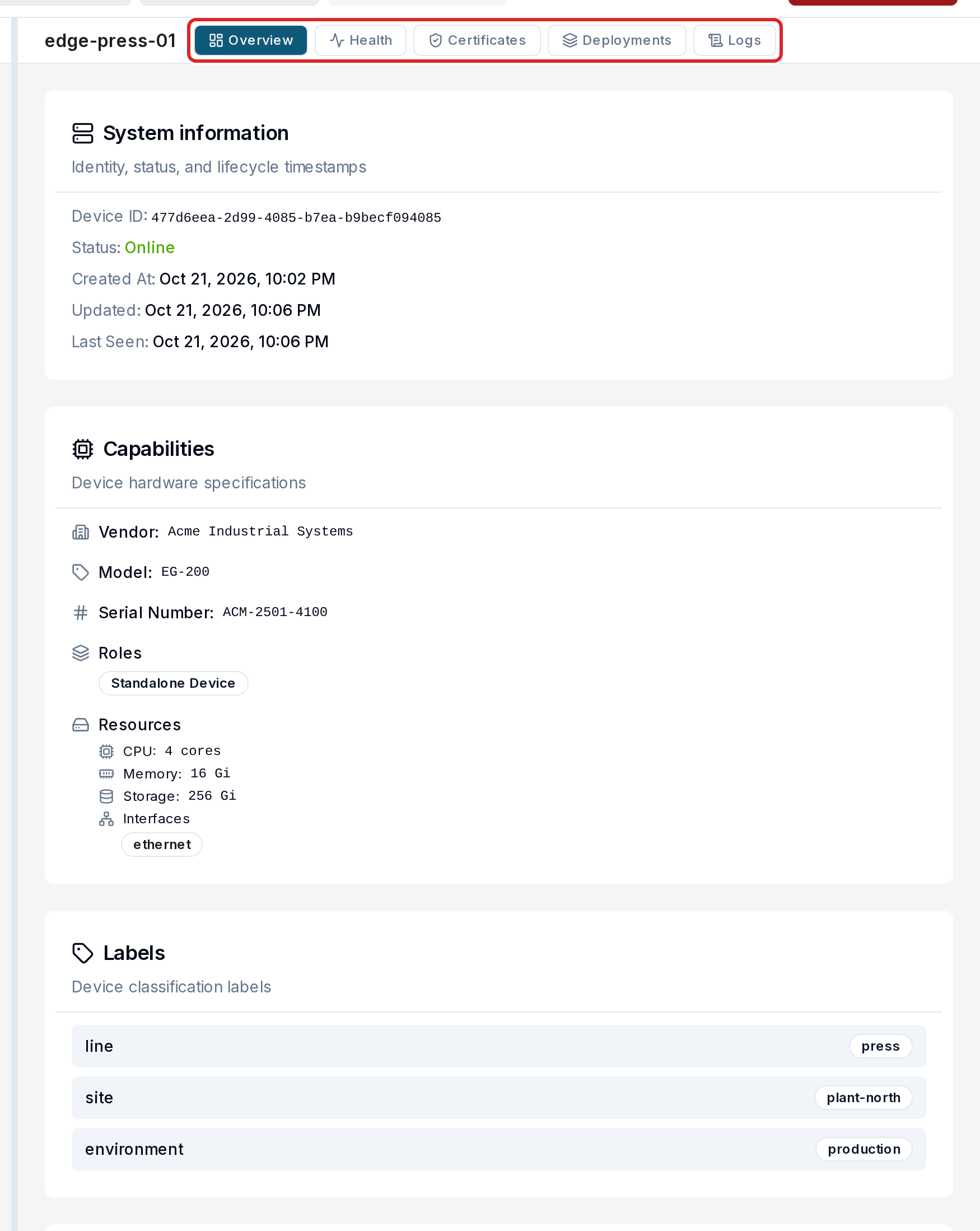
- Overview — labels, the reported capabilities (vendor, model, CPU, memory, storage, architecture) and the device metadata (IDs, status, created, updated, last seen).
- Health — current resource usage, a 24-hour chart and the device logs. See Health below.
- Certificates — the device certificate with its status, issuer, fingerprint and validity dates.
- Deployments — the deployments that target this device and their state.
- Logs — the activity log of the device: onboarding, status changes, deployments and other events.
Health
Section titled “Health”The Health tab shows the telemetry the device sends to logiccloud orchestrate. See Device Telemetry for how to set this up on the device.
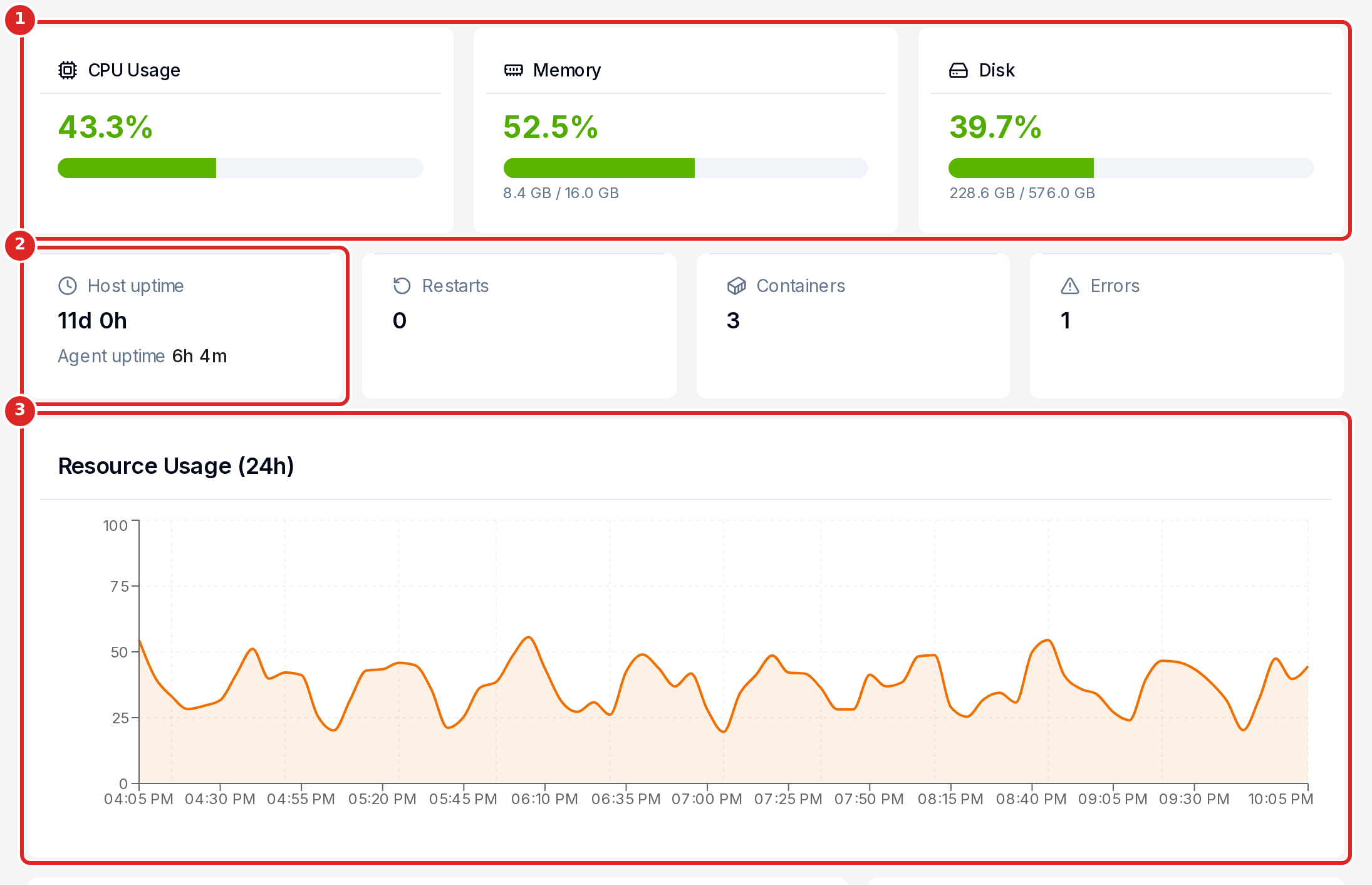
- CPU Usage, Memory and Disk — the current values. Memory and disk also show used and total space. Disk adds up all real file systems of the device.
- Host uptime, Agent uptime, Restarts, Containers and Errors. Agent uptime is how long the telemetry agent on the device has been running. It is shown only when the device reports it.
- Resource Usage (24h) — CPU, memory and disk in percent over the last 24 hours.
The values refresh every 30 seconds. logiccloud orchestrate keeps metrics for 48 hours. When the device sends no telemetry, the tab shows No telemetry data available for this device.
Device logs
Section titled “Device logs”The Device Logs card at the bottom of the Health tab shows the logs of the workloads on the device.
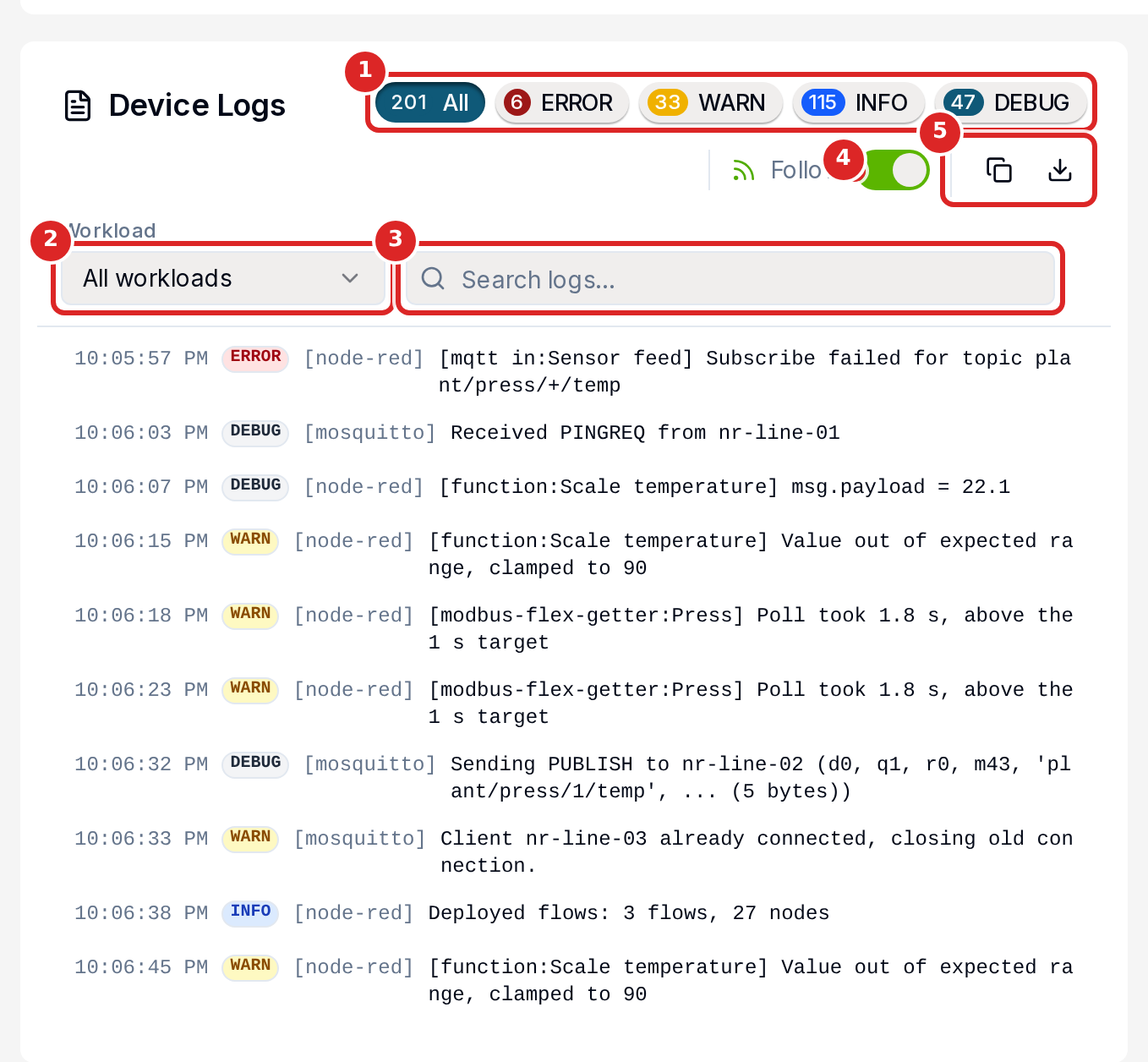
- Severity — show all lines, or only ERROR, WARN, INFO or DEBUG lines.
- Workload — show the lines of one workload, or All workloads.
- Search logs… — show only lines that contain the text.
- Follow — new lines appear at the bottom as they arrive. Switch it off to read without the list moving. Jump to latest takes you back to the newest line.
- Copy logs and Download logs — copy or download the lines shown, with your filters applied.
Each line shows the time, the severity, the workload in brackets and the message. The card shows the newest 1,000 lines and then streams new lines live. logiccloud orchestrate keeps logs for 7 days.
Labels
Section titled “Labels”Labels are key = value pairs on a device, for example line = press. Use
them to filter the device list, to target deployments and to scope alert
rules. Edit a device to add or remove labels.
Actions
Section titled “Actions”The actions are icons on the selected device card:
- Edit — change the device name and its labels. Operators and admins.
- Delete — every workload is uninstalled from the device first. The device shows Deleting until it confirms the removals (or the removal timeout passes), and is then removed. A device without workloads is removed at once. No new deployment targets a device that is being deleted. Operators and admins.
- Roll back to previous version — re-deploys the earlier version of the application the device runs, with its earlier parameters. Users who can run deployments.
Delete devices in the page header deletes several devices at once: click devices to move them to the list on the right, then confirm.
Adding devices
Section titled “Adding devices”Devices register themselves with logiccloud orchestrate, as the Margo specification describes. See Margo Onboarding. When your tenant has no devices yet, the page shows Get started with device onboarding with the device API address of your tenant and the commands a device runs.