Device Groups
A device group is a named set of devices that you choose yourself, for example Press line with the three presses of a plant. Use groups to deploy an application to many devices in one step and to see why a device belongs to a deployment.
Who can access this: all roles can view device groups. Operators and admins can create, change and delete them.
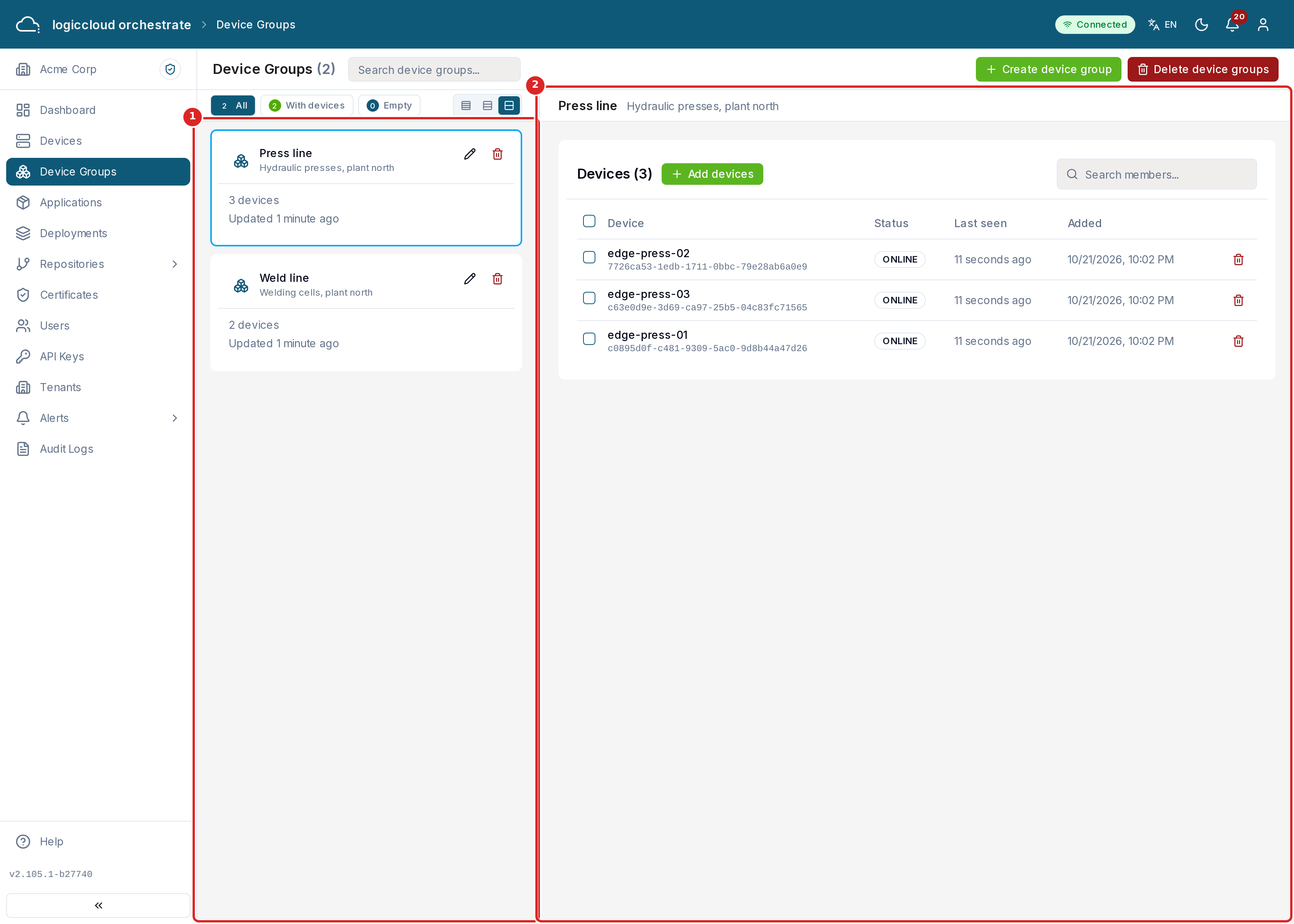
What you see
Section titled “What you see”The list of groups is on the left (1). Each card shows the group name, its description and how many devices it has. The group you select opens on the right (2) with its members.
- Search device groups… finds a group by name.
- The buttons All, With devices and Empty filter the list.
- Card size shows more groups at once.
Creating a group
Section titled “Creating a group”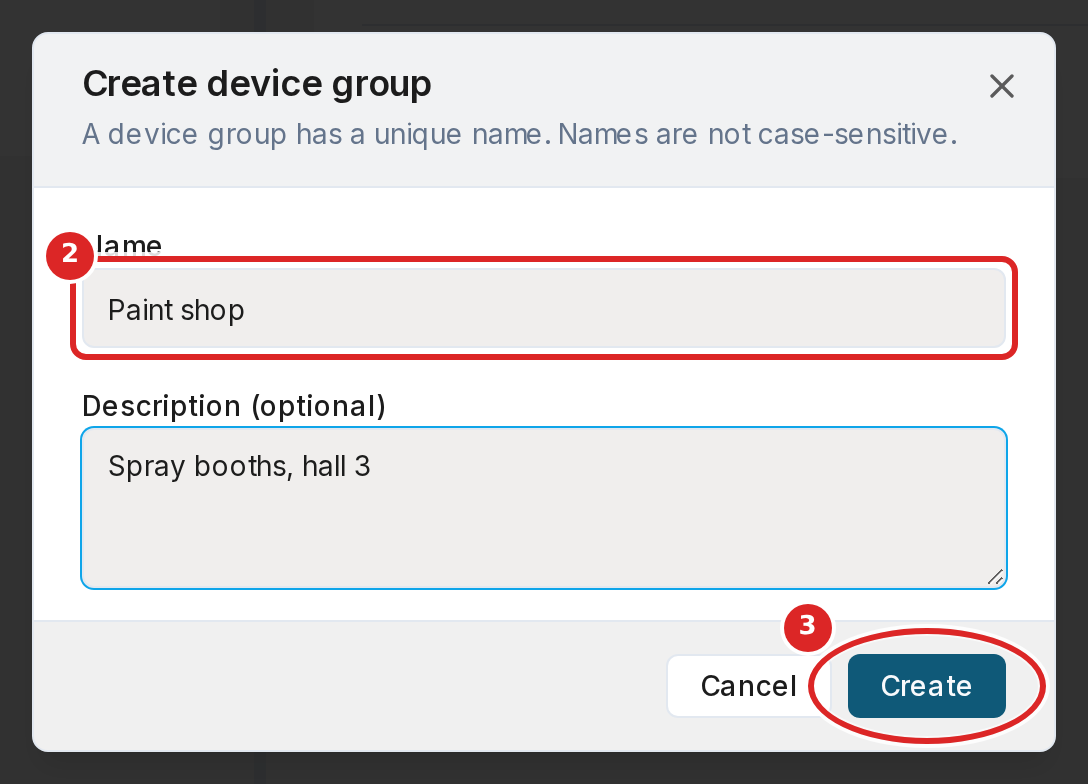
- Click Create device group.
- Enter a Name (at most 100 characters) and an optional Description.
Each name can be used once in your tenant. Upper and lower case do not
count, so
Press lineandpress lineare the same name. - Click Create.
A new group has no devices. Add them as described below.
Adding and removing devices
Section titled “Adding and removing devices”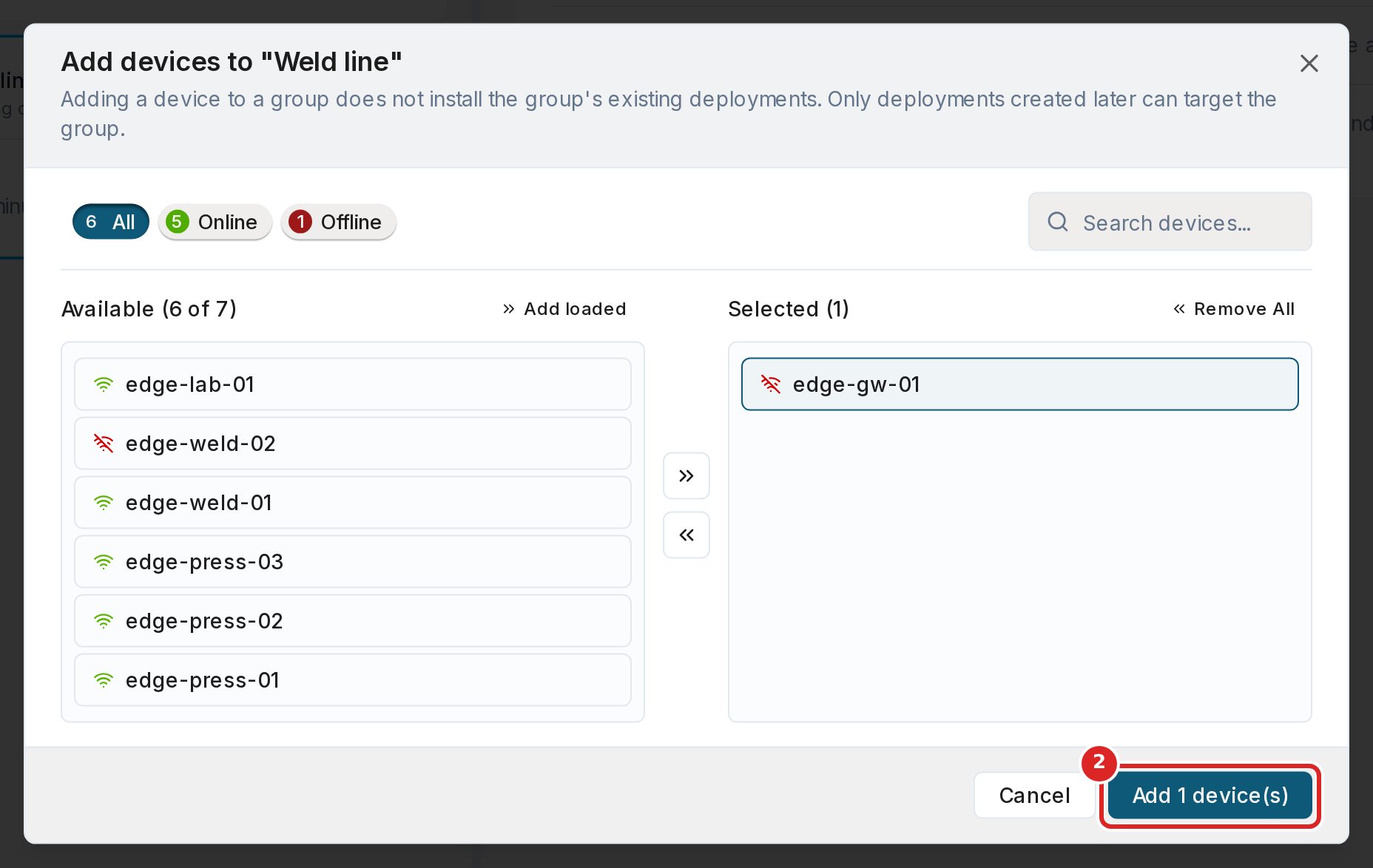
- Select the group and click Add devices.
- Pick the devices and click Add N device(s).
Adding a device to a group does not install the deployments that already target the group. Only deployments created later reach the new member.
To remove devices, use Remove from group on a member row, or tick several rows and click Remove selected. The devices keep their workloads; nothing is uninstalled. A deployment that reached a device only through this group keeps running on it, but manages it separately from then on.
The members table shows each device’s status, when it was last seen and when it was added. Use Search members… to find a device.
Deploying to a group
Section titled “Deploying to a group”In the deploy wizard, step Select Devices lists your groups first, then the devices. Use the Type filter to show only groups or only devices. Select one or more groups, single devices, or both. Resolved targets below the list shows every device the deployment will reach, marked via the group or selected directly. A device in two selected groups is counted once.
On a deployment, the Targeted column shows for each device whether it is targeted Direct or Via a group. A group that was renamed shows its old and new name; a deleted group shows as Via a deleted group.
Changing and deleting groups
Section titled “Changing and deleting groups”The actions are icons on the group card:
- Edit device group — change the name or the description.
- Delete device group — removes the group. The devices are not changed and keep their workloads. Deployments that targeted the group keep its name, shown as deleted.
Delete device groups in the page header deletes several groups at once: click groups to move them to the list on the right, then confirm.
Labels and groups
Section titled “Labels and groups”Device labels (key = value, see Devices) are a
different thing. Labels describe a device and filter lists and alert rules.
Groups are explicit lists of devices that you manage on this page.