Alerts
The Alerts module is where you decide what should notify you, and where those notifications go.
Who can access this: admins only. Admins create, edit and delete alert rules and notification targets.
An alert has two halves, and you configure them separately:
- an alert rule — the condition that fires, and which devices it watches;
- one or more notification targets — an email address or a webhook endpoint the alert is delivered to.
A rule with no targets is evaluated but notifies nobody, so set up a target first.
In the sidebar, Alerts has three pages: Rules, Notification targets and History. Clicking Alerts itself opens Rules.
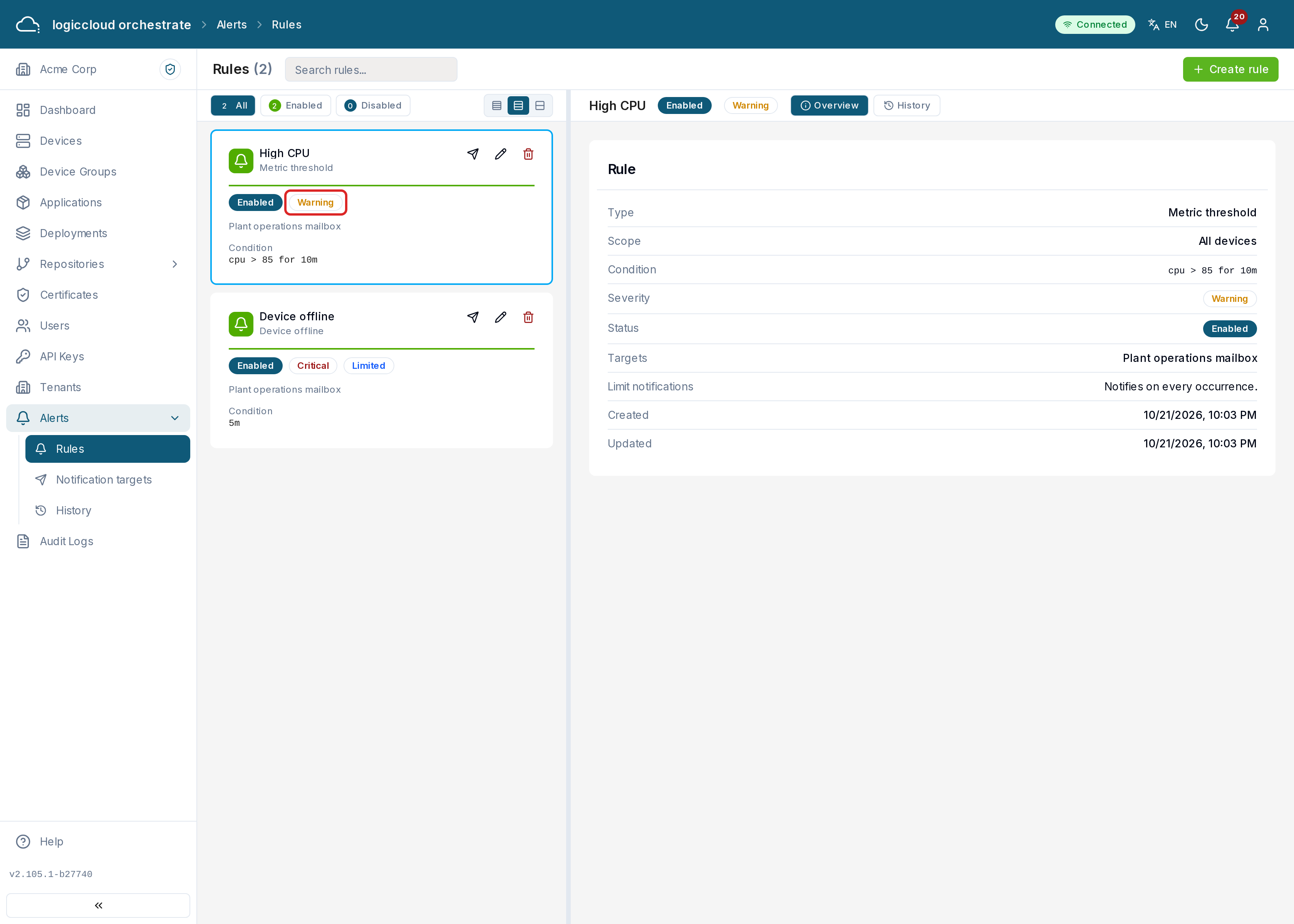
Alerts → Rules shows your rules as a list of cards on the left, with a search field (Search rules…). Click a card to open the rule in the panel on the right. The panel has two tabs:
- Overview — the rule’s type, scope, condition, severity, status, targets, notification limits and dates.
- History — the occurrences of this rule only (see History).
Creating a rule
Section titled “Creating a rule”Click Create rule.
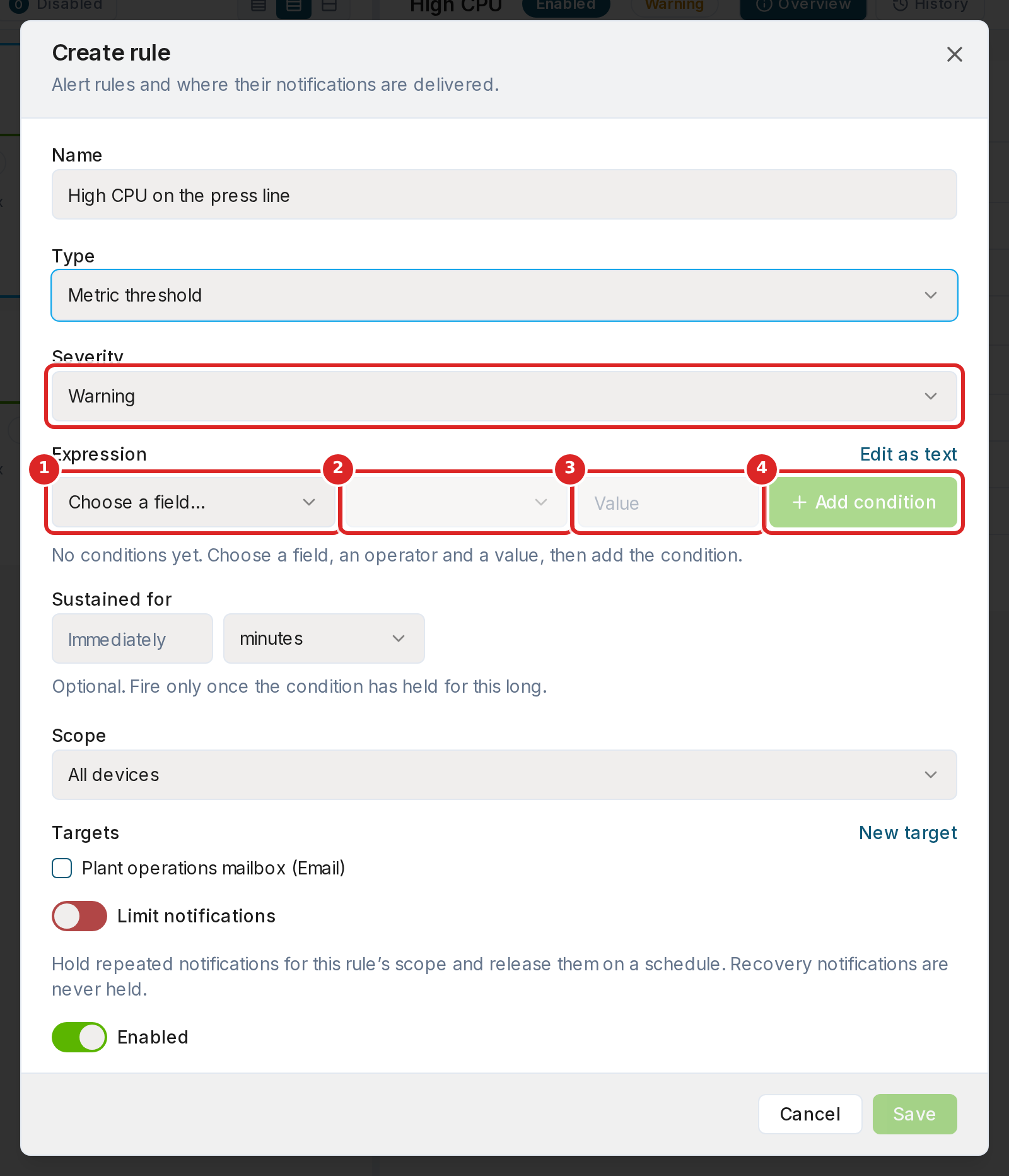
Give the rule a Name (at most 200 characters) and choose its Severity: Info, Warning (the default) or Critical. The severity is shown on the rule and in every notification, so receivers can sort urgent alerts from the rest. Then set the four parts below, and optionally limit the notifications.
1. Rule type
Section titled “1. Rule type”| Type | Fires when |
|---|---|
| Device offline | A device stops reporting for longer than the threshold you set. |
| Metric threshold | A reported metric crosses the threshold in your expression. |
| Workload crash | A workload on the device reports failed or repeatedly restarting containers. |
| Rollout halted | A rollout stops: a canary fails, the failure threshold is met, or an operator rolls it back. |
The rule type is fixed once the rule is created.
2. Condition
Section titled “2. Condition”For Device offline, set Minutes offline before firing. The default is five minutes.
Rollout halted has no condition to set. It fires once for every halt.
For Metric threshold and Workload crash, build the condition:
- Pick the Metric or attribute, for example CPU usage (%) or Label: line.
- Pick the Operator: greater than, at least, less than, at most, equals, does not equal. Attributes allow only equals and does not equal.
- Enter the Value.
- Click Add condition for more conditions. All conditions must hold (they are joined with “and”).
- Optionally set Sustained for: the rule fires only after the condition has held that long, for example 10 minutes. The default is Immediately.
Prefer to type? Click Edit as text and write an expression (see Expression syntax). The field checks your syntax as you type and marks the exact character it could not read. Use the builder switches back, unless the expression is too complex for the builder.
3. Scope
Section titled “3. Scope”| Scope | Applies to |
|---|---|
| All devices | Every device in your tenant. |
| By label | Devices carrying every label key and value you list. |
| Single device | One device, by its ID. |
A Rollout halted rule takes a different scope. It covers All deployments or a Single deployment that you pick from your own deployments. The device scopes do not apply to it. A halt is delivered once to each notification target, with the deployment name, the reason and the number of failed instances. The history shows it as a closed entry, because a halt has no recovery.
By label: pick a label key and a value, then Add label for more. A device matches only if it carries all the pairs you list.
4. Notification targets
Section titled “4. Notification targets”Tick the targets this rule should notify. A rule can notify several, and each one receives its own copy.
Limiting notifications
Section titled “Limiting notifications”A flapping device or a busy metric can send many notifications. Switch on Limit notifications in the rule to hold repeated notifications and release them on a schedule. Notifications that an alert has resolved are never held.
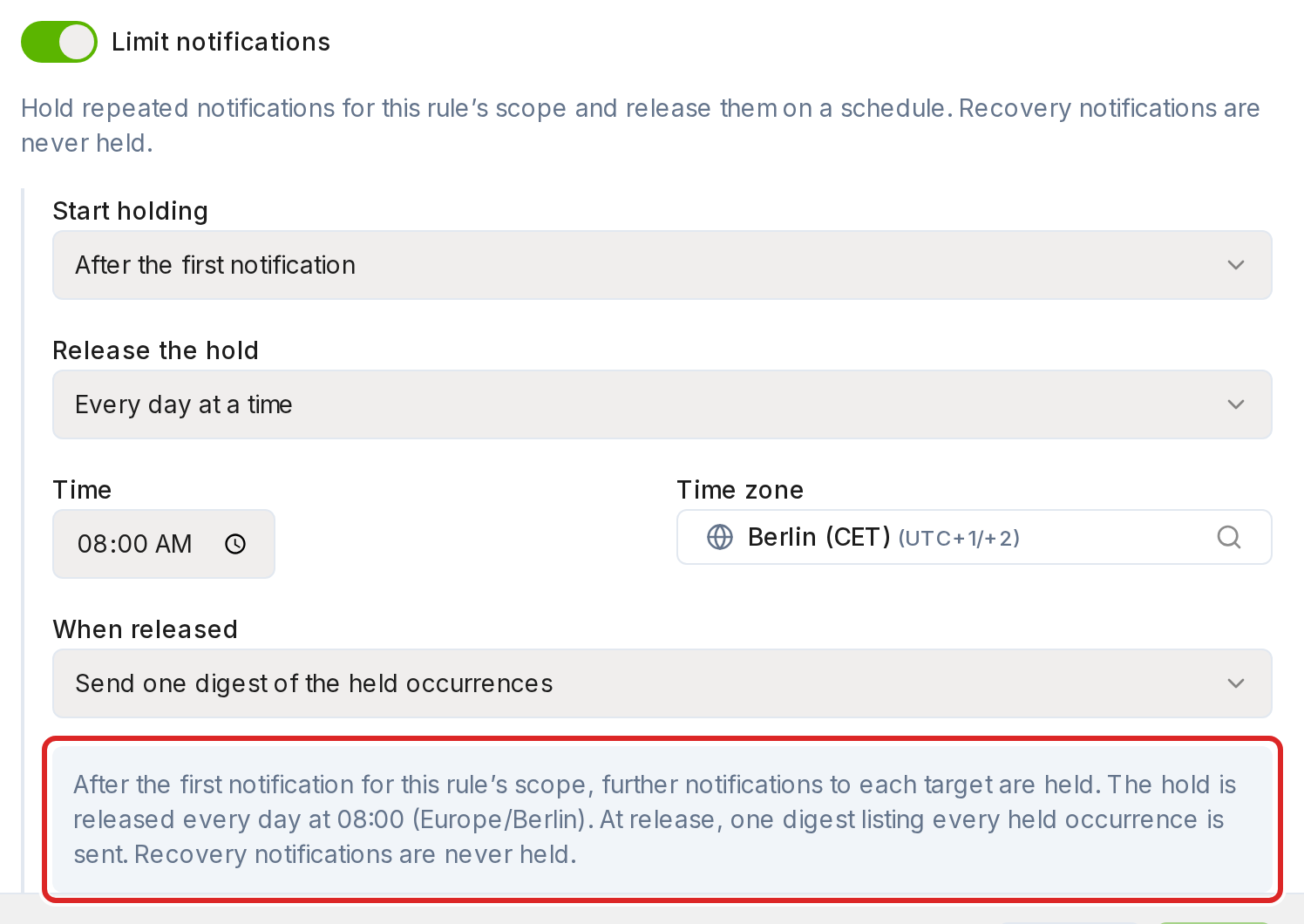
- Start holding — After the first notification, or After a number of notifications in a period (for example 3 per hour).
- Release the hold — After a fixed number of hours (1 to 168), Every day at a time, or On chosen weekdays at a time, with a time zone.
- When released — Send one digest of the held occurrences, Send every alert that is still open again, or Send nothing.
A sentence below the fields says in plain words what the rule will do. A rule that limits its notifications shows the badge Limited.
Testing a rule
Section titled “Testing a rule”Click Send test on a rule to dispatch a test notification through every target wired to it. The result tells you, per target, whether delivery succeeded — so a single misconfigured endpoint is identified by name rather than hidden behind a generic failure.
A test never counts as a real alert: it creates no history entry and cannot suppress a genuine alert that fires afterwards.
Rule actions
Section titled “Rule actions”Each rule card has these actions:
- Send test — dispatch a test notification to the rule’s targets.
- Edit rule — change the name, severity, condition, scope, targets, notification limits or enabled state.
- Delete rule — removes the rule and its delivery history, after confirmation.
Notification targets
Section titled “Notification targets”Alerts → Notification targets shows your targets as a list of cards on the left, with a search field (Search targets…). Click a card to open the target in the panel on the right: its channel, destination, status, whether it is signed, its custom headers and its dates.
Adding a target
Section titled “Adding a target”Click Add target. In the target dialog, the Enabled switch decides whether the target receives anything; a disabled target receives nothing.
Give the target a name and an email address. Nothing else is required — the platform uses the mail relay your deployment is already configured with.
Webhook
Section titled “Webhook”Give the target a name and an HTTPS URL. The platform will POST a JSON body
to that URL whenever an alert fires or resolves. See
Webhook payload below for the exact shape.
When you save a webhook target, the platform generates a signing secret and shows it to you once, in a dialog.
The platform always generates the signing secret; you cannot choose it. It stores the secret and the custom header values encrypted. If you lose it, or need to replace it, click Rotate signing secret on the target and confirm. The platform generates a new secret and shows it once, in the same dialog. The previous secret stops working at once, so update your receiver right after.
Custom headers are sent with every delivery, for example an
Authorization header that your receiver expects. Add them in the target
dialog. A stored header value is never shown again: the dialog lists the header
names, and an empty value keeps the stored one. Type a new value to replace it,
or remove the row to drop the header. Host, Content-Length, Content-Type,
Transfer-Encoding, Connection and the X-Webhook-* headers are set by the
platform and cannot be added. A target holds at most 20 custom headers.
The URL must be publicly reachable. Addresses that point back into private
infrastructure — localhost, loopback and link-local addresses, private ranges
such as 10.x or 192.168.x, cloud metadata endpoints, and internal cluster
hostnames — are rejected when you save. logiccloud orchestrate fetches this URL from
inside its own network, so allowing those would let a webhook target reach
services that are not meant to be reachable from outside.
The channel cannot be changed after a target is created. Create a new target instead — switching an email target to a webhook would leave every alert already recorded against it claiming to have been delivered over a transport that never ran.
Target actions
Section titled “Target actions”Each target card has these actions:
- Edit target — change the name, destination, custom headers or enabled state. The channel stays fixed.
- Rotate signing secret — webhook targets only; see Webhook.
- Delete target — removes the target, after confirmation.
History
Section titled “History”Alerts → History (the page title is Alert history) lists every alert occurrence of all rules: which rule fired, on which device, when it fired and when it resolved, and whether the notification was actually delivered. More entries load as you scroll; the count shows how many of the total are loaded.
Alert state and delivery outcome are shown separately on purpose. “The alert fired” and “somebody received it” are different facts, and the case worth catching — a correct alert whose endpoint was unreachable — is only visible when the two are not merged.
An alert stays Open while its condition holds and becomes Resolved when the condition clears. You receive one notification per occurrence, not one per check — a device offline for an hour notifies you once, and a second, separate outage notifies you again.
Each delivery has an outcome: Delivered, Failed (the tooltip shows the error), Pending or Suppressed (held by Limit notifications; the tooltip shows when). Use Search device, target or rule…, the rule filter, the outcome filter and the Open / Resolved buttons to find an entry. To see the history of one rule only, open the rule and choose its History tab.
Expression syntax
Section titled “Expression syntax”Expressions compare a field against a value, optionally combined with AND and
optionally required to hold for a duration:
field operator value [AND field operator value ...] [for duration]Examples:
cpu > 80memory >= 90 AND disk > 75cpu > 80 AND device.label.tier = "edge" for 5mcontainersFailed > 0device.status = OFFLINEOperators: >, >=, <, <=, =, !=. The ordering operators need a
numeric value.
Durations: 30s, 5m, 2h. With a for clause the condition must hold
across the whole window — a single momentary spike does not fire the rule.
Fields:
| Field | Meaning |
|---|---|
cpu |
CPU usage, percent |
memory |
Memory used, percent of total |
disk |
Disk used, percent of total |
restarts |
Container restart count |
containersFailed |
Number of failed containers |
containersRunning |
Number of running containers |
errors |
Reported error count |
uptime |
Device uptime, seconds |
device.status |
ONLINE, OFFLINE, PENDING or ERROR |
device.name |
Device name |
device.label.<key> |
The value of a device label |
Webhook payload
Section titled “Webhook payload”A webhook target receives a POST with Content-Type: application/json and
this body:
{ "id": "e9a1c2f0-5b3d-4c8a-9f21-7d6e4b8a1c33", "type": "alert.triggered", "timestamp": "2026-09-29T10:00:00.000Z", "data": { "ruleId": "b2c3d4e5-6f70-4a81-9b2c-3d4e5f607182", "ruleName": "CPU above 80% on edge nodes", "ruleType": "METRIC_THRESHOLD", "condition": "cpu > 80 for 5m", "organizationId": "1a2b3c4d-5e6f-4071-8293-a4b5c6d7e8f9", "deviceId": "7f8e9d0c-1b2a-4394-8576-1c2d3e4f5061", "deviceName": "edge-berlin-01", "metricValue": 93.5, "firedAt": "2026-09-29T10:00:00.000Z", "deliveryId": "3c4d5e6f-7081-4192-a3b4-c5d6e7f80912" }}type is alert.triggered when the alert fires and alert.resolved when it
clears; a resolution also carries resolvedAt. metricValue is omitted
entirely for rule types that have no metric, so absent and zero remain
distinguishable. deliveryId is stable across the fire and resolve messages of
the same occurrence, so you can correlate the pair.
Headers
Section titled “Headers”| Header | Value |
|---|---|
Content-Type |
application/json |
X-Webhook-Id |
Unique per delivery — use it to discard duplicates |
X-Webhook-Signature |
sha256=:<hex>: — HMAC-SHA256 of the raw body, keyed by the secret |
Verify the signature by computing HMAC-SHA256 over the raw request body (before parsing it) with your target’s signing secret, and comparing it to the hex digest between the colons. Compare with a constant-time function.
Retries
Section titled “Retries”A delivery is attempted up to three times with exponential backoff starting at
one second, and each attempt times out after ten seconds. logiccloud orchestrate retries
on connection failures, 5xx responses and 429. It does not retry other
4xx responses — those say the request itself was unacceptable, and repeating
it unchanged cannot help.
Respond 2xx as soon as you have accepted the payload, and do slow work
afterwards. A receiver that holds the connection open while processing will hit
the timeout and be retried.