Deployments
The Deployments module is where you roll out applications to devices and watch their progress in real time.
Who can access this: all roles can view; operators and admins can create, roll out, re-deploy and delete deployments.
Creating a deployment
Section titled “Creating a deployment”Deployments are created from the Applications module with the deploy wizard. To reach many devices at once, select a device group in the wizard. The wizard steps: pick the application/version, choose target devices, set parameters, choose a rollout strategy, and submit.
Rollout strategies
Section titled “Rollout strategies”| Strategy | How it behaves |
|---|---|
| Immediate | All targeted devices deploy at once, no batching. |
| Canary | A percentage of devices deploy first; if healthy, the rest follow — automatically (after an optional delay) or after you Promote Canary. |
| Rolling | Devices deploy in batches; each batch proceeds automatically or after you Approve Batch. |
You can also enable auto-rollback, which reverses the deployment if failures exceed a threshold you set (by percentage or count).
What you see
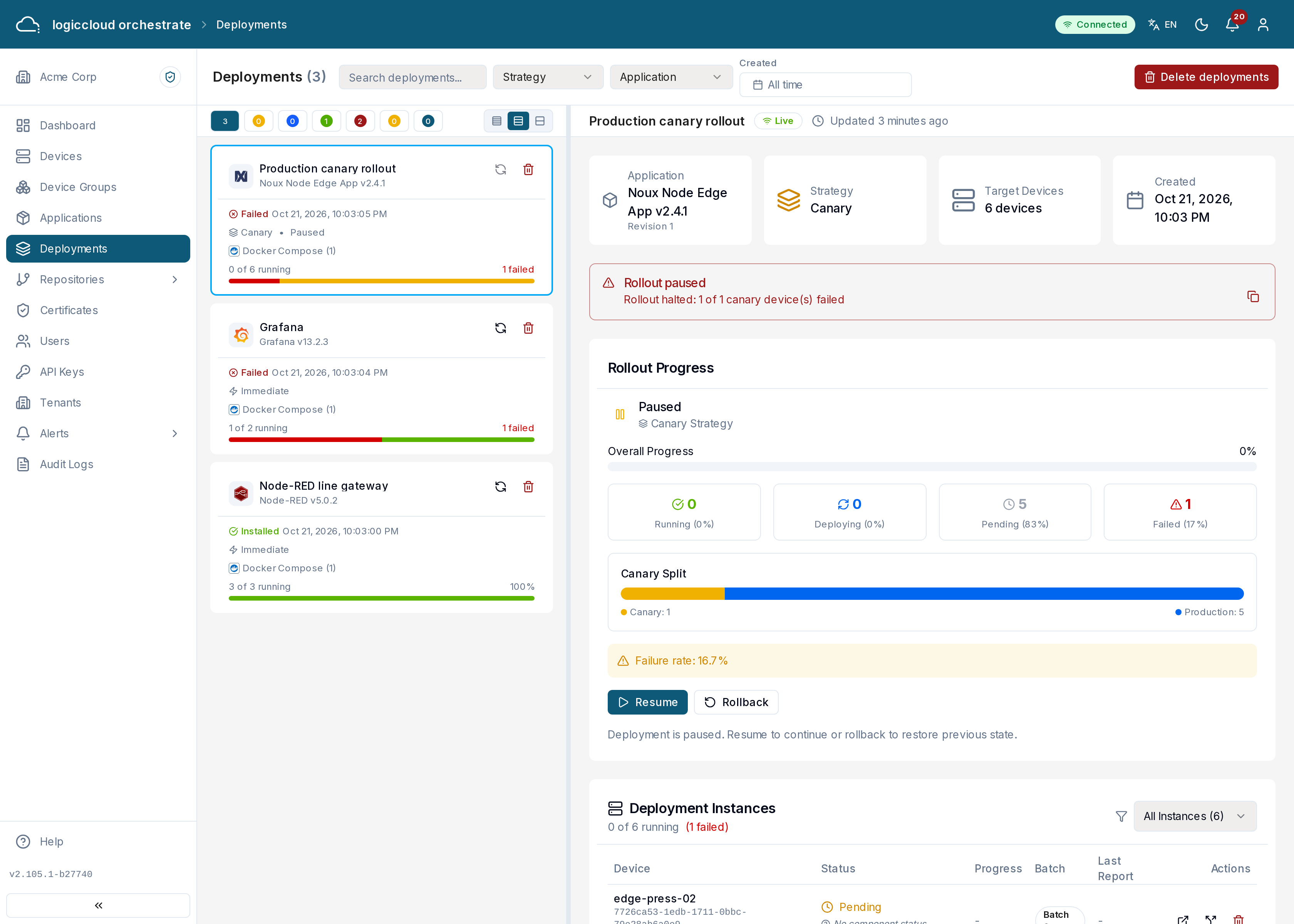
Section titled “What you see”Each deployment card shows its name, the application and version, the status, the strategy and how many devices have it installed (for example “3/5 instances”). The newest deployment is at the top. The list loads more deployments as you scroll.
Finding deployments
Section titled “Finding deployments”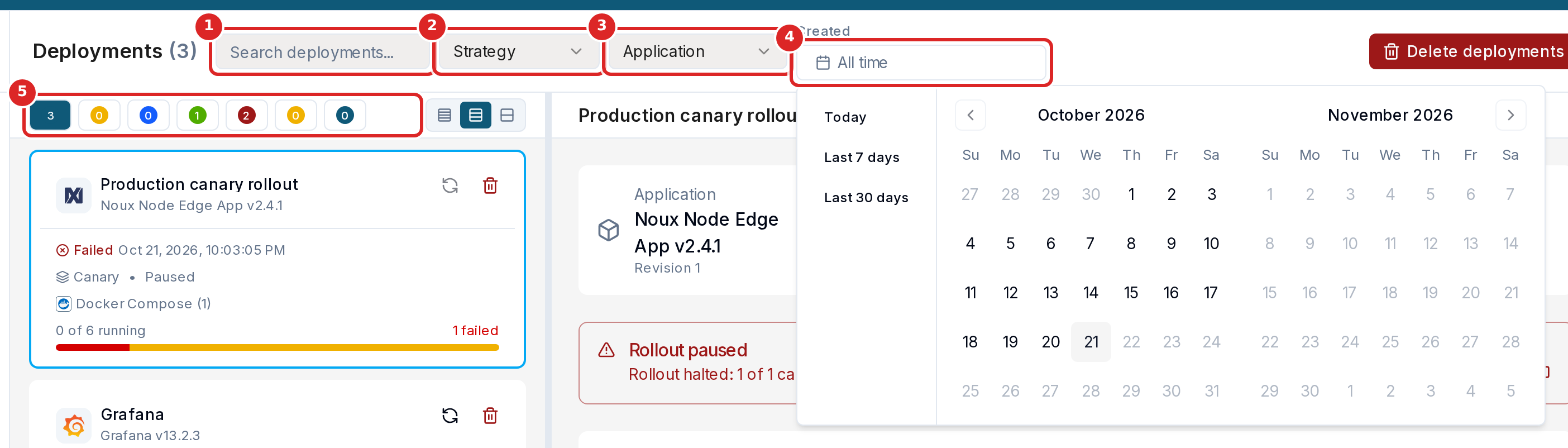
- Search deployments… — type part of a deployment name or of its status message.
- Strategy — show only Immediate, Canary or Rolling deployments.
- Application — show only the deployments of one application.
- Created — show only deployments created in a time range. Pick Today, Last 7 days or Last 30 days, or click a start day and an end day in the calendar. Both days are included. Click the X in the field to show all deployments again.
- The status buttons (All, Pending, Installing, Installed, Failed, Removing, Removed) show how many deployments have each status. Click one to show only those.
All filters work together. Clear filters resets them. The date range uses whole days; a deployment created shortly before or after midnight can fall on the neighbouring day when your time zone differs from the server’s (UTC).
In the API, GET /api/v1/deployments accepts createdFrom and createdTo
(dates such as 2026-10-01). A start date after the end date is rejected.
Monitoring and controlling a rollout
Section titled “Monitoring and controlling a rollout”Open a deployment to see live progress. The detail page shows the target selector, a rollout progress bar with the per-instance breakdown, the per-device instances (status, download progress, attempts, last error), the full configuration, and a timeline of events. It updates live: device reports, edits, deletions and removals made by anyone appear without a reload. The deployment list and the deployments on a device page update live too.
Depending on the deployment’s state, the actions available include:
- Start (when pending),
- Promote Canary (when a canary phase is ready),
- Approve Batch (rolling, manual approval),
- Pause / Resume,
- Rollback (optionally with a reason),
- Cancel, and Delete (once finished).
When the server halts a rollout
Section titled “When the server halts a rollout”A canary or rolling rollout stops by itself when its health rules say so. You see this in two places:
- a short notice on any page of your tenant, with View deployment, and
- a banner on the deployment page that stays until the rollout continues or ends: Rollout paused or Rollout rolled back, with the reason.
| Reason | What happened |
|---|---|
| Canary deadline exceeded | The canary devices were not all installed within the canary time window you set. |
| Canary failed | A canary device reported failed. One failed canary device is enough. |
| Failure threshold exceeded | More devices failed than the auto-rollback threshold allows (percentage or count). |
| Rollout halted | Someone rolled the deployment back by hand. |
Look at the failed devices in the Deployment Instances table, then Resume the rollout or Rollback. An alert rule can also send an e-mail or webhook when a rollout halts, see Alerts.
Re-deploying
Section titled “Re-deploying”Re-deploy moves a deployment to another version of the same application and/or new parameter values, in place: the deployment and its devices keep their ids, and each device updates without an uninstall.
A deployment created with several deployment profiles forms a deployment group (one deployment per profile). Re-deploy on the group card moves the whole group in one action: every deployment of the group changes, or none does. The group uses one set of parameter values. The re-deploy is refused, naming the deployment that blocks it, when any deployment of the group cannot be re-deployed (for example while it is being removed) or when the target version no longer declares a profile the group uses.
Removing a deployment
Section titled “Removing a deployment”Delete asks every targeted device to uninstall the application. The removal
is complete only when each device confirms it. Until then the deployment stays in
the list in the Removing state. Its card is grayed out, shows how many devices
have removed it, and offers only Force delete. The deployment can no
longer be changed: the API rejects every change with 409 Conflict. Its detail
panel still shows the details and the state of each device (awaiting
confirmation, removed, or removal failed).
When every device confirms, the deployment becomes Removed and leaves the list. Time alone never removes it. If a device no longer exists or never confirms, use Force delete on the card or in the detail panel. It marks the deployment as removed on every device that did not confirm, records your name and an optional note, and removes the deployment for good. Mark as removed on a device row does the same for one device. A deployment whose remaining devices were deleted has nothing left to confirm, so it is removed automatically.
You can also remove a deployment from only some of its devices while it keeps running on the others. In the Deployment Instances table, use Uninstall from this device on the device row.
A device removed this way stays removed, even if it later matches the deployment’s device selector or group again. Use Re-include this device on its row to target it again. Removing the last remaining device removes the whole deployment. The detail panel lists the devices a deployment was removed from, with their removal state and Mark as removed.
Managing one device separately
Section titled “Managing one device separately”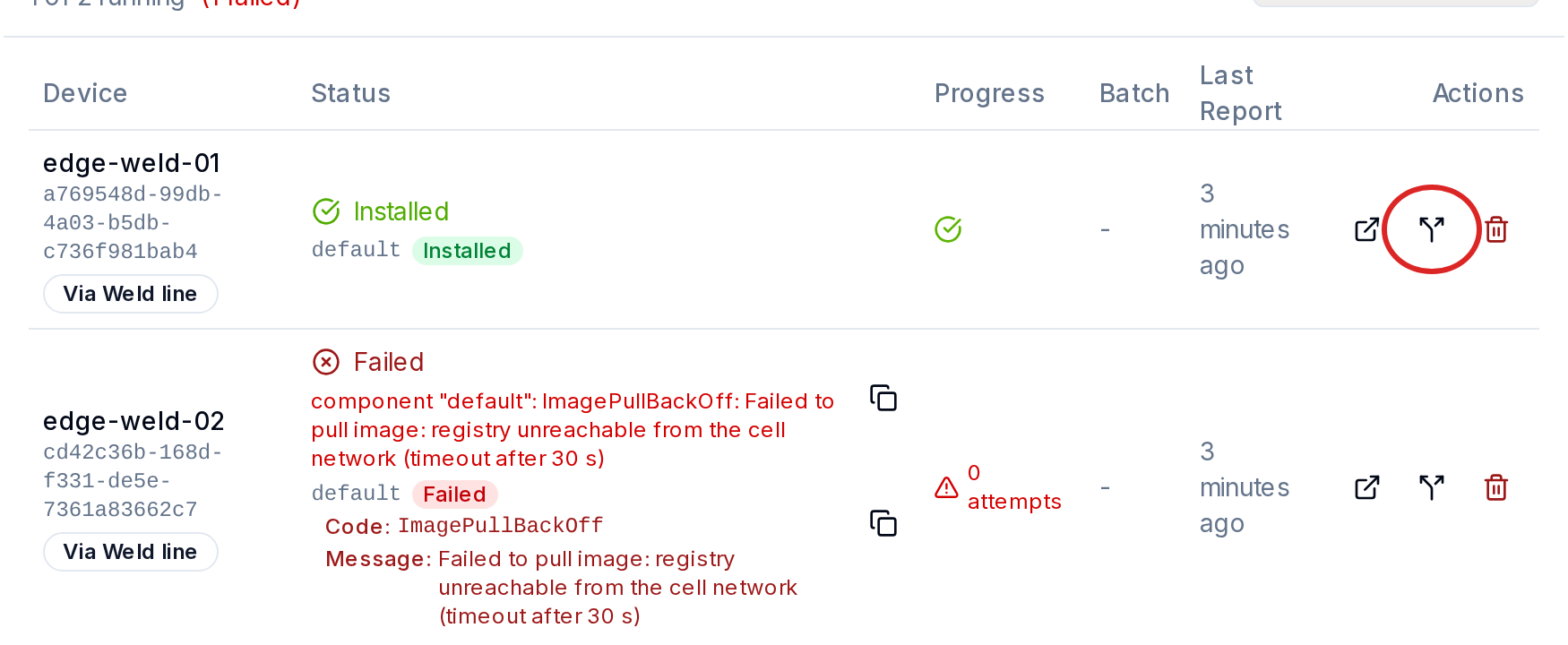
Sometimes one device needs other parameters or another version than the rest. Use Manage separately on its row in the Deployment Instances table. logiccloud orchestrate creates an individual deployment for that device:
- The device is not changed and the workload is not reinstalled.
- Later changes to the original deployment no longer reach the device.
- The new deployment shows Split from with a link to the original one.
The action is not available when the device is the only target, when the deployment was rolled back, or for removed or excluded devices.
The Targeted column shows how each device is targeted: Direct, or Via a device group.
Status values
Section titled “Status values”A deployment moves through these states, mirroring the Margo lifecycle:
pending → installing → installed, or failed; a delete or a rollback goes removing → removed. See Margo · Deployment Status for the underlying spec.