Repositories
Repositories are the sources of your application catalog. logiccloud orchestrate imports the Margo applications it finds in them and lists them under Applications.
Who can access this: admins and operators.
In the sidebar, Repositories has three pages:
- Git Registries — Git repositories with Margo application descriptions.
- OCI Registries — container registries with Margo application packages.
- FLECS Store — the apps of a FLECS marketplace store linked to your tenant.
Each registry belongs to your tenant only. Other tenants do not see it.
Git registries
Section titled “Git registries”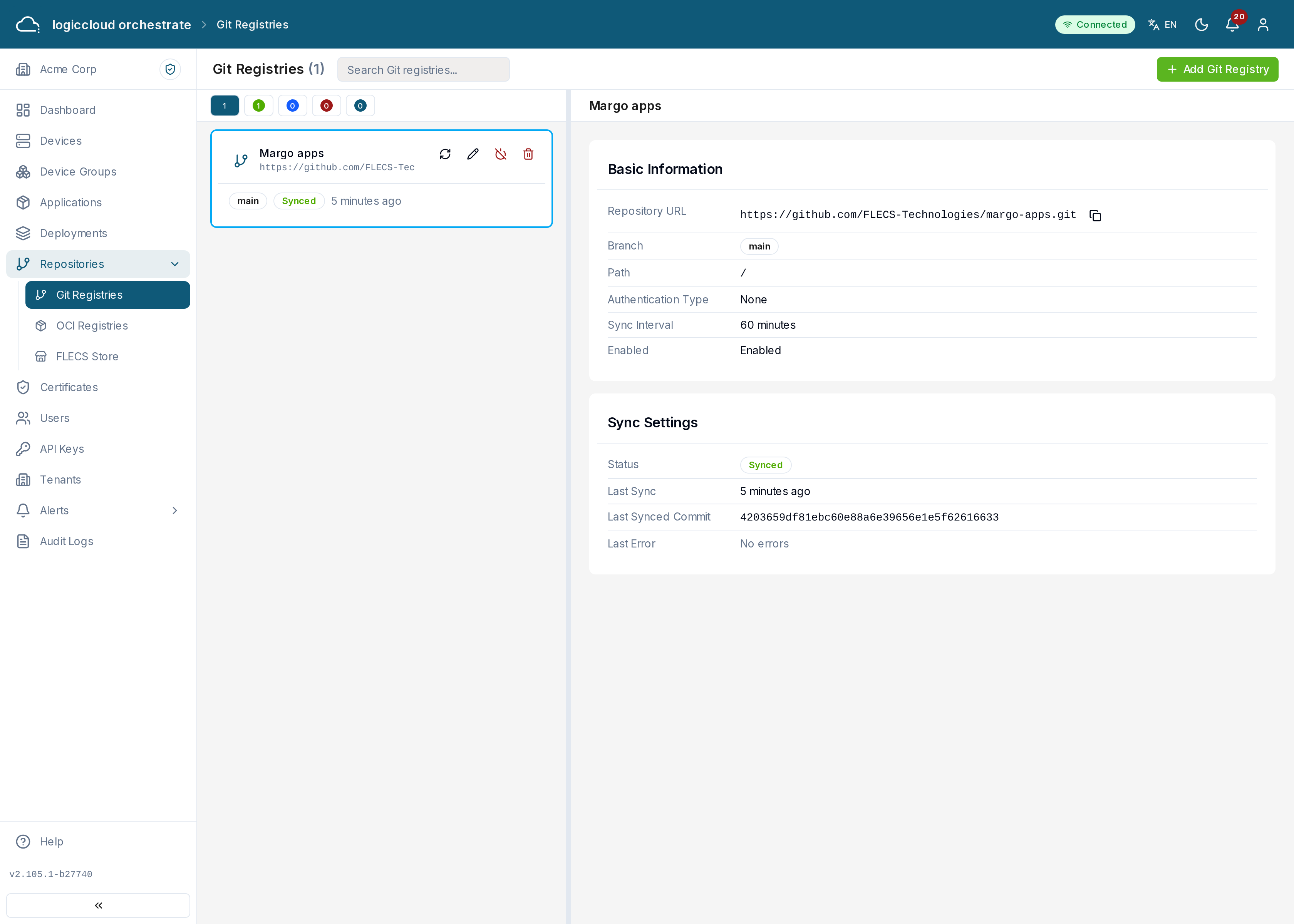
The list is on the left; the selected registry opens on the right with its settings, its sync state and the last synced commit.
Adding a Git registry
Section titled “Adding a Git registry”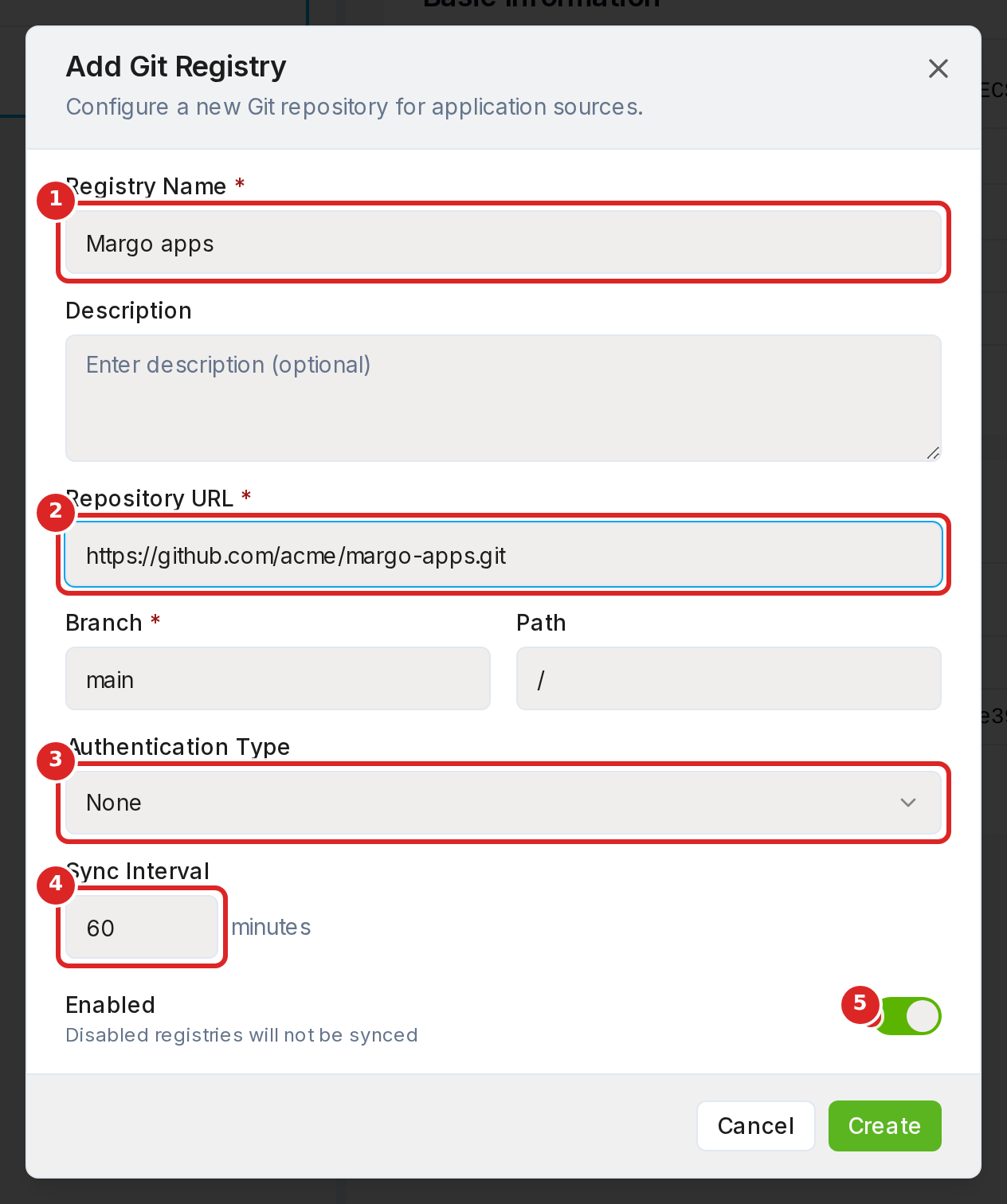
Click Add Git Registry and fill in:
- Registry Name and an optional Description.
- Repository URL, for example
https://github.com/acme/margo-apps.git, the Branch (for examplemain) and the Path inside the repository (/for the whole repository). - Authentication Type — None for a public repository, Access Token or SSH Key for a private one, with the token or key.
- Sync Interval — how often logiccloud orchestrate looks for changes, at least 5 minutes.
- Enabled — a disabled registry is not synced.
logiccloud orchestrate syncs the registry on its schedule. Sync Now starts a sync at once.
Sync status: Synced, Syncing, Sync Error or Pending (the first sync has not run yet).
OCI registries
Section titled “OCI registries”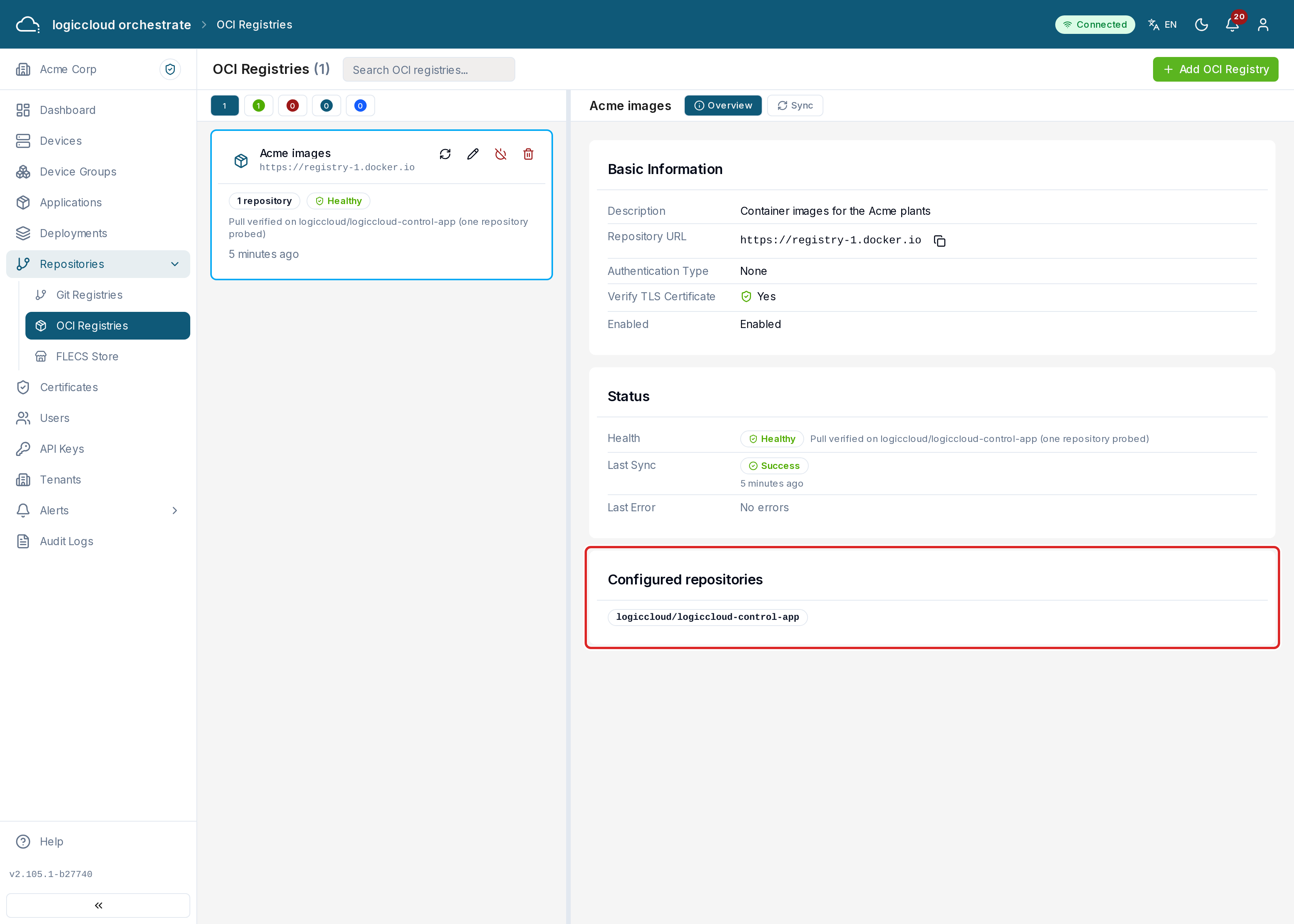
Adding an OCI registry
Section titled “Adding an OCI registry”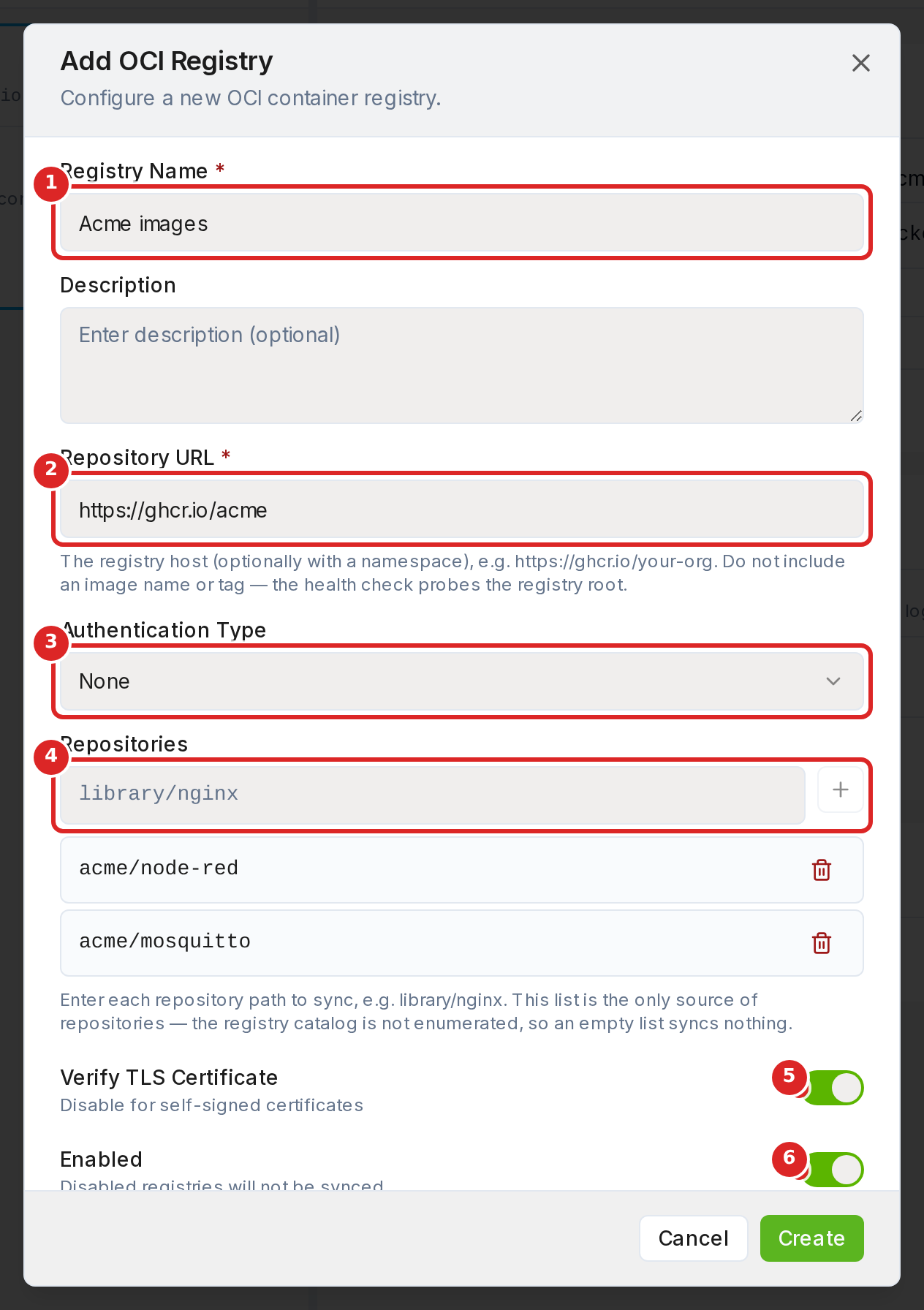
Click Add OCI Registry and fill in:
- Registry Name and an optional Description.
- URL — the registry host, optionally with a namespace, for example
https://ghcr.io/acme. Do not add an image name or a tag. - Authentication Type — None, Basic Auth (username and password) or Bearer Token. When you edit a registry, leave the credential fields empty to keep the stored credential.
- Repositories — type each repository to import, for example
acme/node-red, and press Enter or click Add repository. See The repository list. - Verify TLS Certificate — switch it off only for an internal registry with a self-signed certificate.
- Enabled — a disabled registry is neither synced nor checked.
The repository list
Section titled “The repository list”logiccloud orchestrate imports only the repositories in this list. It does not ask the registry for a list of all its repositories. Many registries (for example Harbor) allow that only for administrator accounts, while a normal account can read a repository when it knows the name. So:
- A registry with an empty list imports nothing. The registry card shows None configured.
- Write each repository as a lowercase path such as
library/nginxoracme/node-red: letters, digits,.,_and-, separated by/, with no/at the start or the end. - Each repository can appear only once.
The Configured repositories card of the selected registry lists the repositories.
Checking and syncing
Section titled “Checking and syncing”The actions are icons on the selected registry:
- Check Health — checks that the registry is reachable and accepts the credentials. Health: Healthy, Unhealthy, Unknown or Checking.
- Sync Now — imports new and changed application versions.
- Refresh — runs the health check, then the sync.
Pull access: logiccloud orchestrate also checks that the credentials can pull the first repository of the list. When they cannot, an amber No pull access badge appears next to the health badge, naming the repository. When they can, the registry shows Pull verified on that repository. Only that one repository is checked.
Sync results per repository
Section titled “Sync results per repository”
The Sync tab of the selected registry shows the syncs of the last 30 days: when it ran, the result, how many repositories it read, how many applications it imported and updated, how long it took and who started it. Expand a failed or partial sync to see Per-repository results: for each repository the number of versions found, imported and updated, the number of tags, and the errors of that repository.
Versions that are not imported
Section titled “Versions that are not imported”The sync skips a tag and does not import its version in these cases. The rules follow the Margo registry specification. They apply to every registry, including the FLECS store.
- The manifest
artifactTypeis missing or is notapplication/vnd.margo.app.v1+json. - The manifest
configis not the OCI empty descriptor (media typeapplication/vnd.oci.empty.v1+json, digestsha256:44136fa355b3678a1146ad16f7e8649e94fb4fc21fe77e8310c060f61caaff8a, size 2). - The application description is not a layer with media type
application/vnd.margo.app.description.v1+yaml. The sync no longer reads other ways: manifest annotations, the config blob, layer annotations or other media types. - A resource file that
metadata.catalog.applicationlists (icon,releaseNotes,descriptionFile,licenseFile) is a layer with another media type thanapplication/vnd.margo.app.<kind>.v1+<format>. The sync finds the layer of a file by the layer title (the path of the file). A listed file without a layer of that title is also rejected. - The tag differs from
metadata.versionof the application description. Margo requires both to be equal. Tag1.2.0for version1.2.0, notv1.2.0or1.2.0-margo-manifest. - A component sets
waitto a value that is nottrueorfalse, or setstimeoutin a format other than##m##s(for example5m30s). The sync rejects only the deployment profile with that component; the other profiles of the version are imported.
A rejected tag is not an error of the sync. The sync result lists it for its
repository with the tag, a code and the reason. Open the sync history of the
registry, expand a run and read the Per-repository results. The sync also
writes one audit entry (action IMPORT, failed, entity type OciRegistry)
for each tag that is newly rejected. A tag that stays rejected is audited once.
A version that was imported before and now fails one of these checks is removed at the next sync. If a deployment still uses it, it is marked unavailable instead. Publish a conformant tag to import the version again.
FLECS Store
Section titled “FLECS Store”The FLECS marketplace offers industrial applications. A platform superadmin can link one FLECS store to your tenant. logiccloud orchestrate then imports the store’s apps that come with a Margo application description, every 5 minutes. The imported apps appear under Applications like apps from any other registry.
Linking a store (superadmins)
Section titled “Linking a store (superadmins)”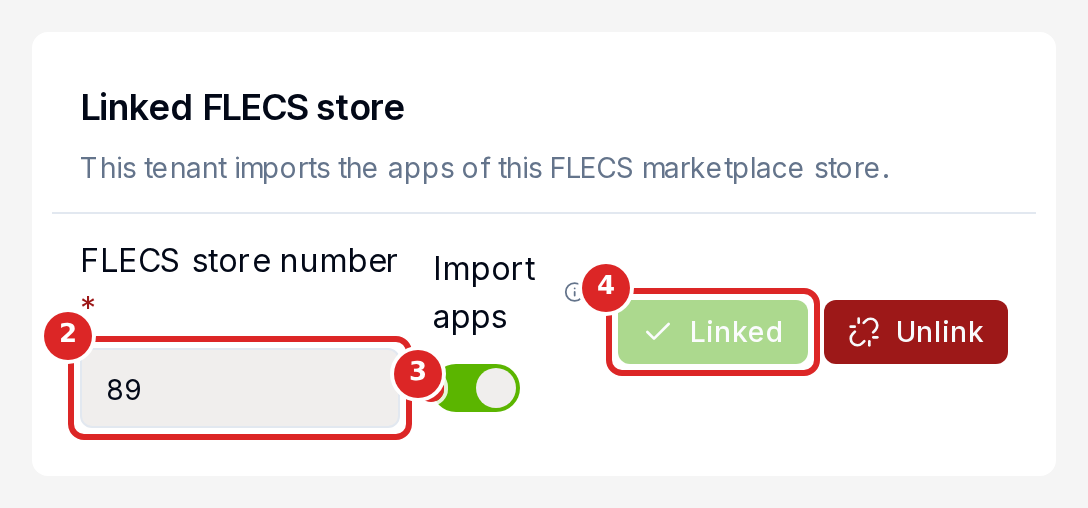
- Open Repositories → FLECS Store in the tenant.
- Enter the FLECS store number (a positive whole number, from FLECS).
- Switch Import apps on.
- Click Link. The first import starts at once.
To stop importing, switch Import apps off and click Save, or click Unlink. In both cases the apps imported before are marked unavailable. The FLECS store itself is not changed.
Following the imports
Section titled “Following the imports”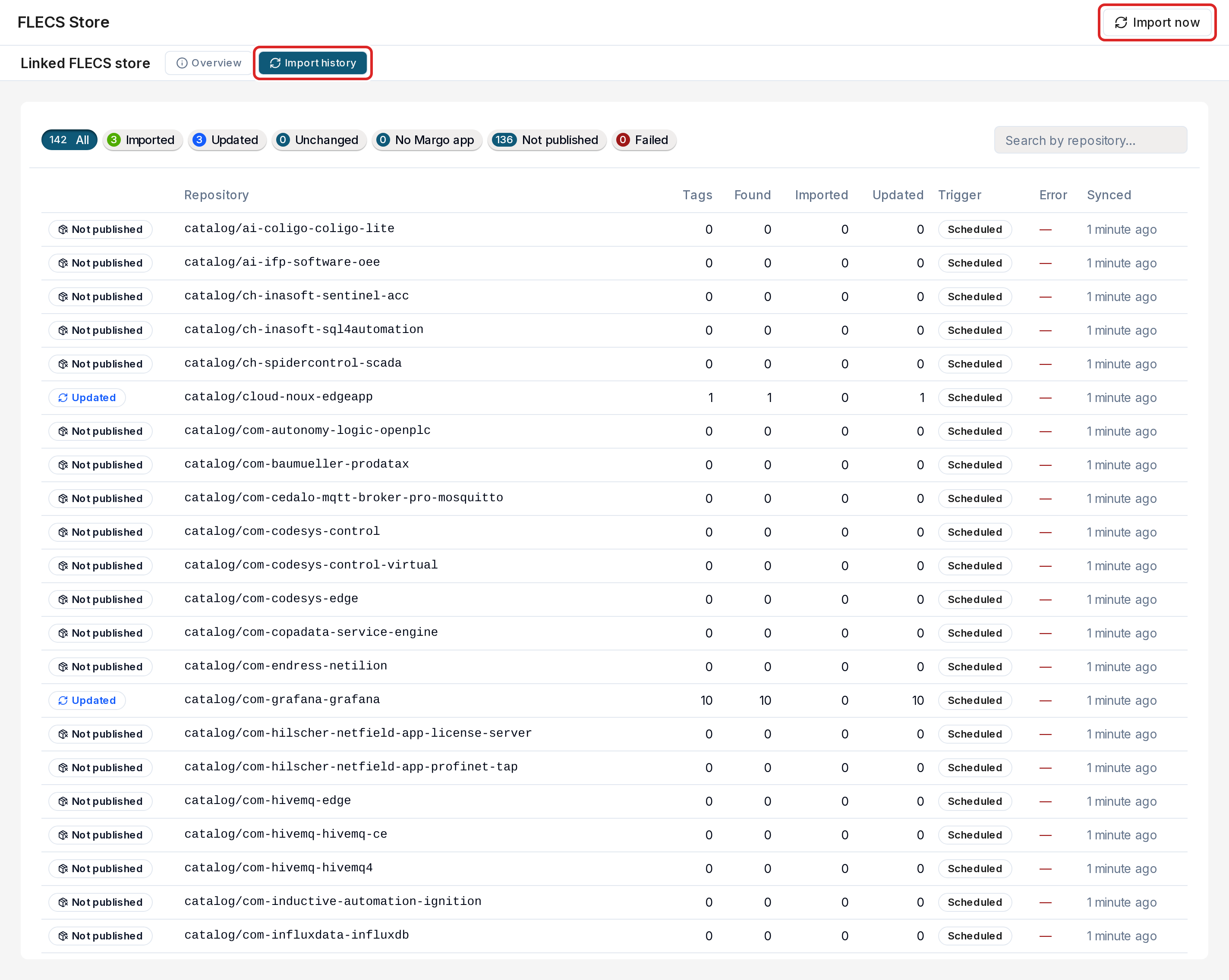
Admins and operators see the linked store on the same page:
- Overview — the last import (how many apps were found, imported and updated, and any errors) and the apps in the store, with how many of their tags have a Margo application description.
- Import history — one row per store repository and import, with the outcome: Imported, Updated, Unchanged, No Margo app (the app has no Margo application description, so it cannot be imported), Not published (the store lists the app, but the app publishes no artifact on the FLECS registry; this is normal for most store apps and not an error) or Failed. Filter by outcome or search by repository.
- Import now — starts an import without waiting for the next one.
Managing registries
Section titled “Managing registries”- Edit — change the settings of a registry.
- Enable / Disable — a disabled registry keeps its settings but is not synced.
- Delete — removes the registry. The applications that came only from it become unavailable.