Getting Started
This page gets you from the sign-in screen to doing useful work.
Signing in
Section titled “Signing in”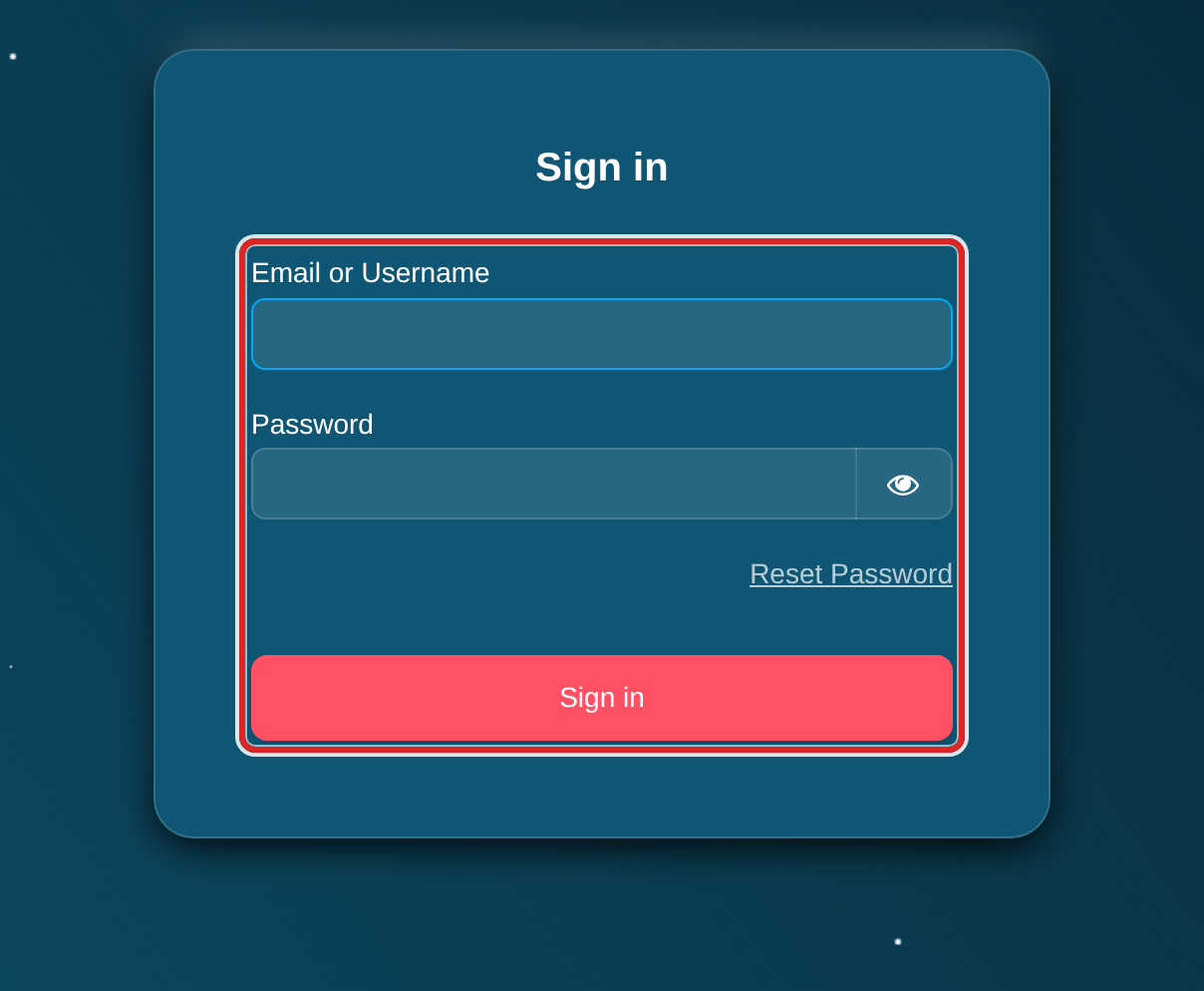
- Open logiccloud orchestrate in your browser:
https://fleet-manager.example.com. - The sign-in page opens. Enter your e-mail address or username and your password, and click Sign in. If your organization signs in with Microsoft, use your corporate account instead (see Corporate sign-in).
- logiccloud orchestrate opens the Dashboard of your tenant.
Forgot your password? Click Reset Password on the sign-in page.
If you don’t have an account, ask a tenant admin to invite you (see Users). Invitations arrive by email with a link to join.
Addresses in this guide
Section titled “Addresses in this guide”Every address in this guide is the address of your installation: the application, the API, the device endpoints and the telemetry endpoint. Open the guide with the Help link in logiccloud orchestrate and the examples also use your tenant.
A copy of the guide outside your installation (for example the Word manual)
shows example.com addresses and an example tenant instead. Your
administrator can tell you the real ones.
Finding your way around
Section titled “Finding your way around”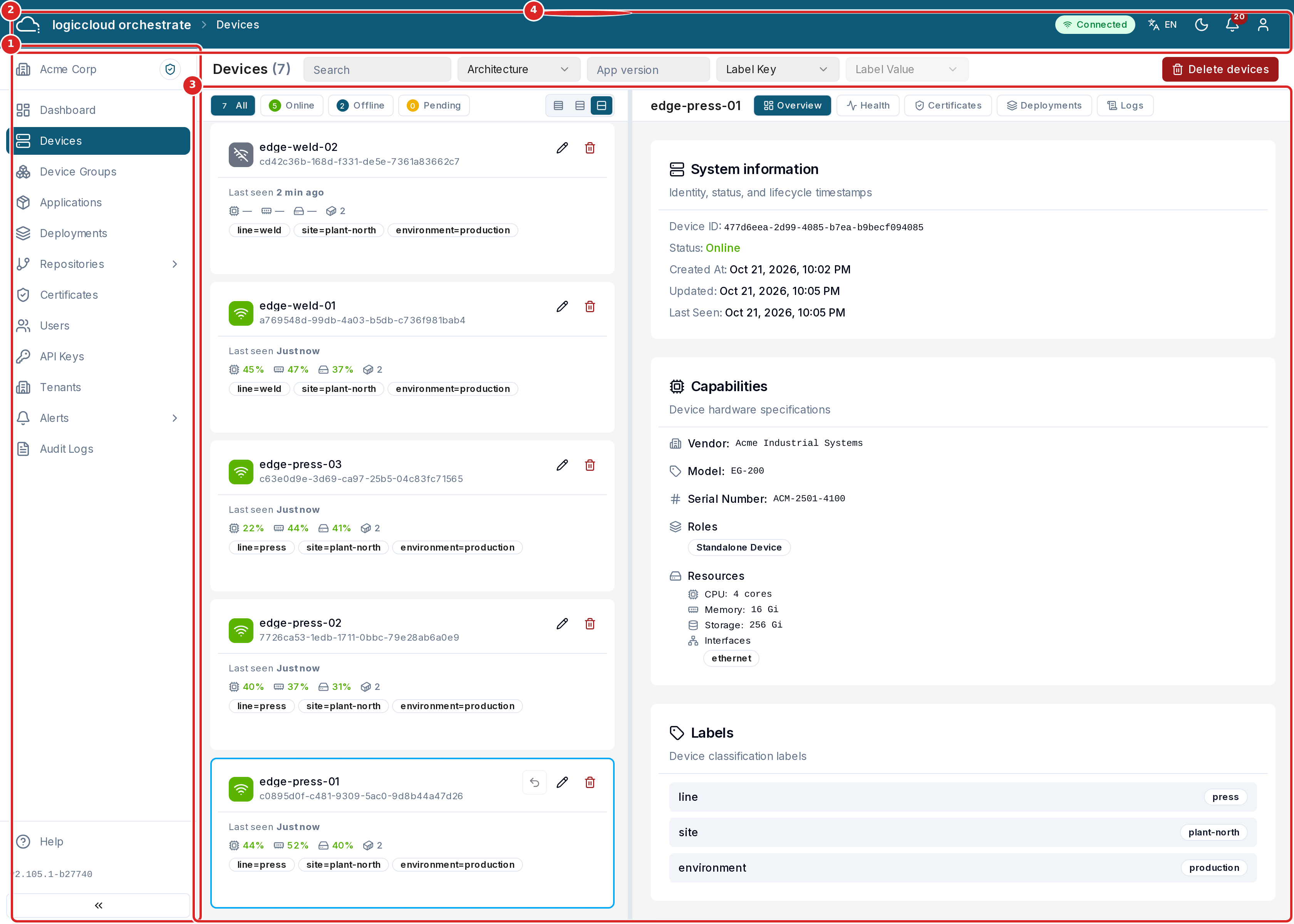
- The sidebar on the left is the main navigation. It lists only the pages your role can use (see Roles & Access). Its top shows your current tenant. Help at the bottom opens this guide.
- The header shows where you are. On the right are the connection status, the language, light or dark mode, the notification bell and the user menu (Profile, Settings, Sign out).
- Most pages are a list with a detail panel: the list is on the left, the item you select opens on the right. Drag the border between them to change their width. Each list has a search box, filters and status buttons that count the items per status.
- Actions are icons on the selected card, with a tooltip that says what they do. Buttons with text at the top of the page create something or act on several items at once.
Notification bell
Section titled “Notification bell”The bell shows recent activity in your tenant: devices that registered, deployments that changed state, certificates that were issued and similar events. A red number shows how many events are new since you last opened it. Open the bell or click Mark all read to clear the number. The bell lists the 20 newest events. For notifications by e-mail or webhook, set up Alerts.
Your tenant context
Section titled “Your tenant context”Every page is scoped to one organization. You can see this in the address bar:
the first part of the path is your organization’s slug, for example
/acme-corp/dashboard or /acme-corp/devices.
Switching tenants
Section titled “Switching tenants”If you belong to more than one tenant — or you hold a system role (SUPERUSER/SUPPORT) — you can switch the active organization:
- Click the current tenant name at the top of the sidebar, or open the Tenants module.
- Choose the organization you want to work in.
- The app reloads in that tenant’s context; the slug in the URL updates and the sidebar refreshes to match your role there.
A switch to a tenant you are a member of needs no reason and creates no switch record. A superadmin or SUPPORT user who enters a tenant they are not a member of opens a tenant switch with a reason. The switch ends after 8 hours by default, when you return to your own tenant, or when you sign out. Tenant switches are recorded in the Audit Log. After you sign in, an open switch decides which tenant you land in; otherwise you land in your primary tenant. For the API rules see Tenant scoping and tenant switching.
Where to go next
Section titled “Where to go next”Pick the path that matches your role:
- Operator / Viewer: Devices → Applications → Deployments
- Tenant Admin: Users → Repositories → Certificates → Settings
- Superadmin: Tenants → Audit Logs
- OT Engineer: Margo Overview → Onboarding